



Managing mobile data isn’t always straightforward. Background app updates and automatic downloads can quietly use data without you realizing it, which adds up if you’re on a limited plan or relying on roaming.
Low Data Mode is an iOS setting that reduces background internet activity while keeping your phone fully functional for active tasks. But many users aren’t sure what it actually does or whether it’s enough to prevent unexpected charges.
Read on to learn how Low Data Mode affects your iPhone and how to activate it and turn it off. We’ll also show you the easiest way to minimize costs while traveling without changing your browsing habits.
How to activate and turn off Low Data Mode
The steps vary slightly by iOS. Once you learn how to enable Low Data Mode, simply repeat the steps to toggle it off.
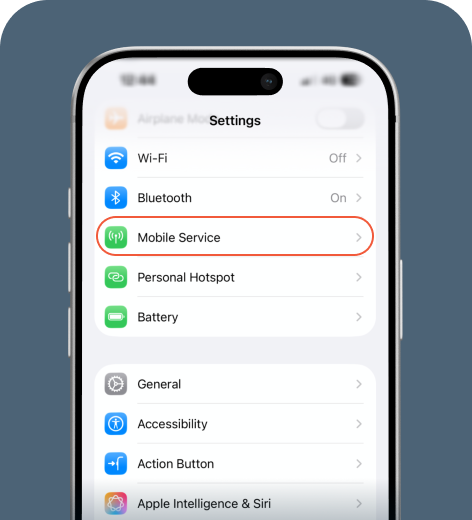
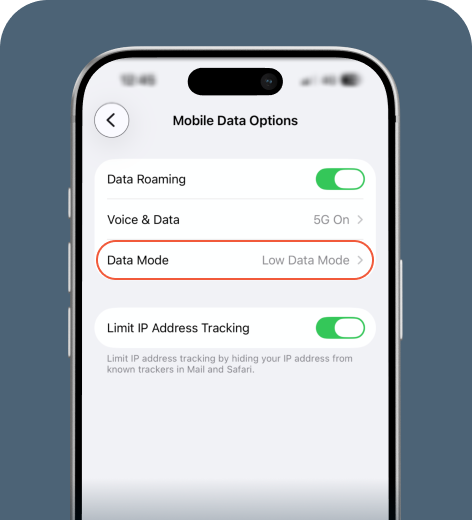
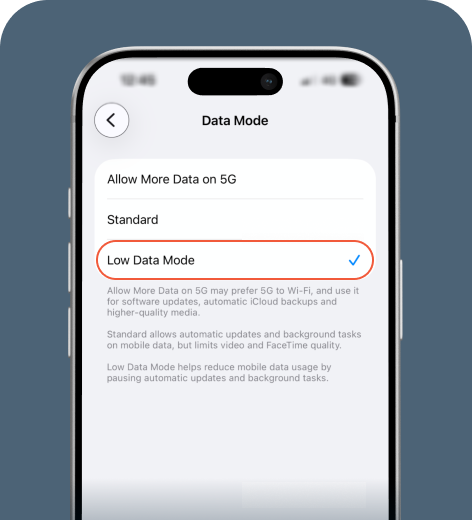
If you use dual SIM, select the correct line before adjusting your preferences. To measure the actual impact, monitor your data consumption before and after enabling this feature.
What happens when you turn on Low Data Mode?
When you activate Low Data Mode, the biggest difference is how your iPhone handles background processes versus user-initiated actions.
Here’s a side-by-side comparison:
| Normal mode | Low Data Mode | |
| Background app refresh | ✔ | ✗ |
| Automatic app updates | ✔ | ✗ |
| Streaming quality | High | Reduced |
| Cloud syncing | Continuous | Delayed |
| Email refresh | Instant | Less frequent |
These changes reduce passive data usage by making your phone more selective about what it updates automatically.
If you prefer a more hands-on approach to conserving your gigabytes, consider a few advanced data-saving strategies.
What stays the same?
Low Data Mode only limits background processes. Anything you actively choose to do still uses data.
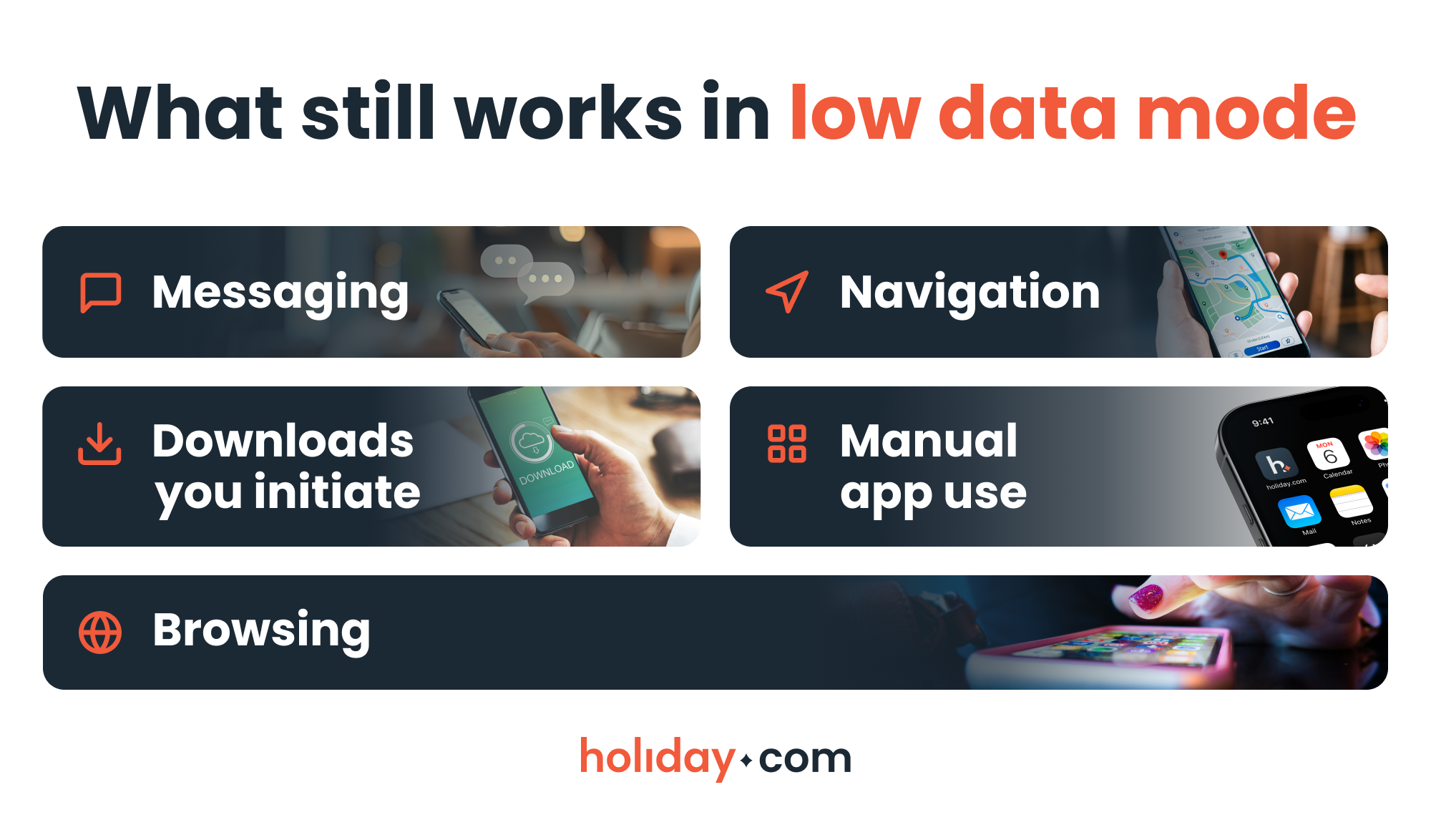
Your iPhone isn’t offline. It’s simply not refreshing apps or syncing files in the background as often.
This is an important distinction. Low Data Mode reduces surprise data drains, but it doesn't eliminate consumption. If you stream high-definition video for an hour, you’ll still consume plenty of data.
When and how should you use Low Data Mode?
Low Data Mode is especially helpful in situations where data is limited or expensive.
You may want to turn it on if you’re:
- Traveling internationally
- Nearing your monthly data cap
- Using a personal hotspot
- On metered hotel Wi-Fi
- Experiencing slow or congested networks
Travel is often where this feature becomes most useful, but it’s important to understand its limitations. While Low Data Mode helps reduce background consumption, it doesn’t change how your carrier charges you. If your provider’s fees are high to begin with, turning on Low Data Mode won’t lower the price per gigabyte. It’ll only reduce how quickly you use data.
For short trips or light use, this may be enough. But if you rely heavily on maps, ride-sharing apps, translation tools, or streaming, you may still burn through your allowance or face overages.
We recommend a prepaid data plan that’s transparent and easy to adapt to your needs. A travel eSIM with unlimited data, like holiday.com, might be one of the most convenient solutions. It’ll give you the freedom to keep your favorite apps running as usual without constantly monitoring your usage or worrying about caps and unexpected charges.
HOT TIP
If you use dual SIM (such as your home SIM and a travel eSIM), you can enable Low Data Mode on one line and leave it off on the other to control how each plan behaves.
Take control of your data
Low Data Mode is a built-in tool that stops background apps from eating up your precious data allowance. While it won’t erase carrier fees on its own, it can help keep them in check. For travel, consider unlocking unlimited data with a holiday.com eSIM.
FAQ
-
Should I leave Low Data Mode on all the time?

Yes, especially if you have a limited data plan. Just keep in mind that there may be delays for some automatic updates and cloud syncs.
-
Does Low Data Mode affect WhatsApp or FaceTime?
Messaging apps still work normally for texts and voice calls. However, video call quality on FaceTime or WhatsApp may automatically adjust to use less bandwidth.
-
Does Low Data Mode save battery?
Yes. By reducing background syncing and refresh activity, your phone uses less power. While it isn’t a replacement for low power mode, the two features can work together to lower battery consumption.
-
Is Low Data Mode the same as low power mode?
No. Low Data Mode reduces internet usage by limiting automatic, data-heavy background processes. Low Power Mode reduces battery consumption by adjusting overall system performance.
-
Is Low Data Mode the same as data throttling?
No. Low Data Mode is a device setting you control. Data throttling happens when a carrier intentionally slows your speed after you reach a usage limit or during network congestion.
-
Does Low Data Mode slow down my internet speed?
No. It limits background activity and may lower streaming quality, which can make certain apps feel slower, but your actual connection speed remains the same.
-
Why can’t I find Low Data Mode in my settings?
Start by navigating to the Settings menu. You can find Low Data Mode under Mobile Data or Mobile Service. If you use dual SIM, select the active line first. Exact navigation paths may vary slightly depending on your phone model and iOS version.
About our author

You might also be interested in...
-
 Tech
Tech120+ must have apps while abroad
Smartphones, and the digital technologies that support them, have transformed travel planning from frantic guidebook hunts to slick app-powered adventures. But sifting through thousands of options can...
 Lucca
Lucca 07.02.2026
 -
 Tech
TechHow to use hotspot on Android: Step-by-step guide
While convenient when there’s no reliable Wi-Fi network available, using a hotspot on an Android can drain your phone’s battery and eat through your data plan. The impact is even greater when you ...
Ivana Shteriova
06.10.2026 -
 Tech
TechHow to stop apps from running in the background
Your phone handles multiple processes at once, so apps can keep running even when you’re not using them. This hidden activity drains your battery and quietly consumes mobile data. The good news is t...
Ana Marković
05.19.2026 -
 Tech
TechWhat is a mobile hotspot? How it works and when to use it
A mobile hotspot can make life easier if your internet goes down while you’re working on a deadline or if the café you picked for a conference call doesn’t have Wi-Fi. If you overuse it, however,...
Ivana Shteriova
04.24.2026