



When you’re trying to install an eSIM, it can be frustrating to see an activation error or find that you have no data or signal. You might worry that you chose the wrong plan or that your phone isn't compatible. On top of this, you have to configure network selection or APN settings, especially when traveling internationally.
If you’re experiencing problems with your eSIM, it’s important to know that these problems are usually easy to solve. Often, the reason is something simple like forgetting you turned on airplane mode or selecting the wrong SIM for mobile data in your settings. In other cases, the source is a temporary network error. Once you identify the underlying issue, it’s easy to fix activation problems and slow data speeds.
Our guide will help you determine the cause of your eSIM not working and show you what to do next, step by step. Whether you’re using an eSIM home or abroad, we’ll break down common situations and explain when contacting support is necessary.
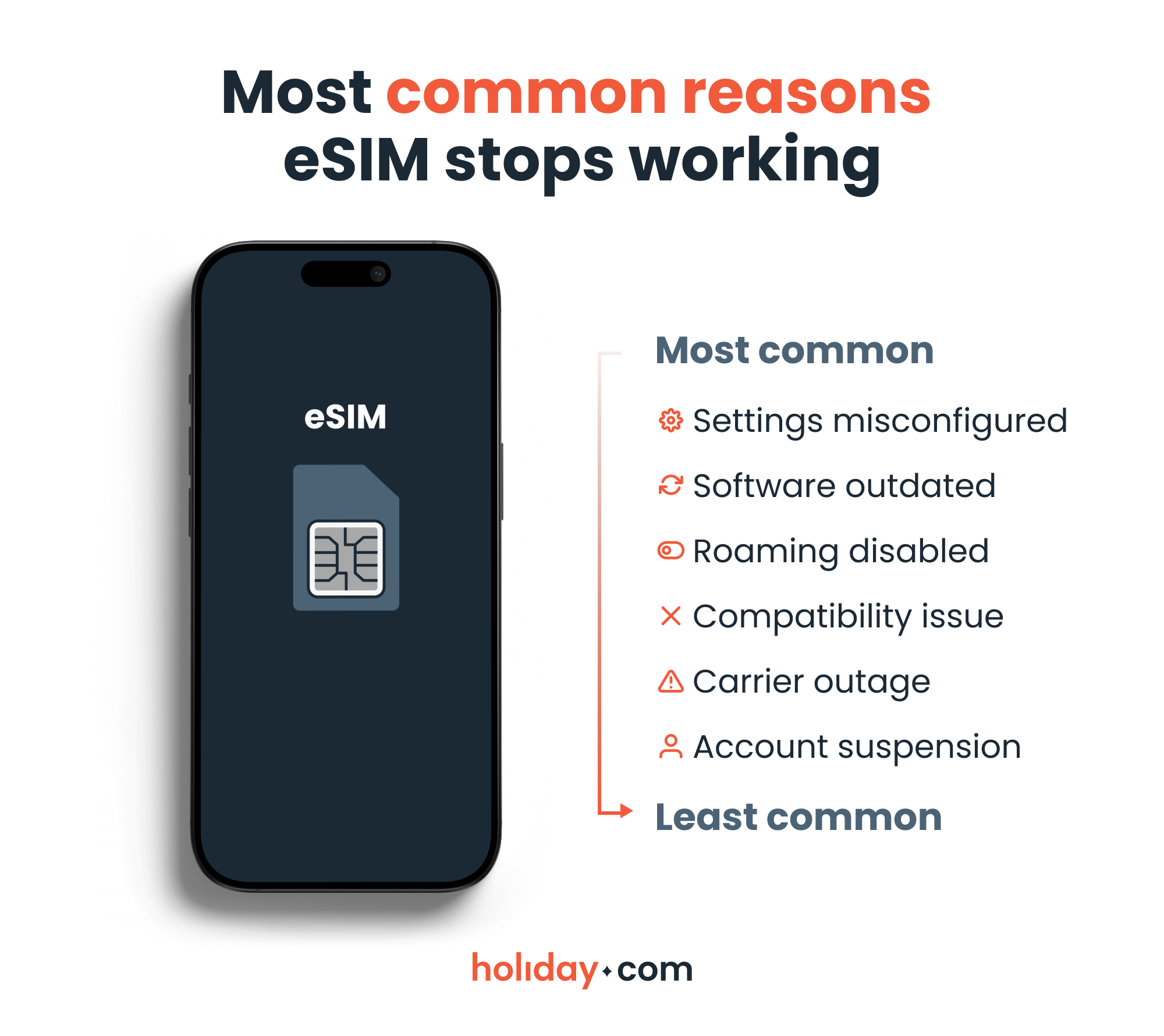
These are the most common reasons why your eSIM may not be functioning properly:
- Device and settings issues. Your phone may have misconfigured settings, such as having airplane mode turned on or data roaming turned off. Sometimes you just need to restart your phone to be able to establish a connection.
- Activation and compatibility issues. If your device doesn’t support eSIM or has a carrier lock, the eSIM may fail to activate. In some cases, the explanation might be an expired QR code or an interruption during installation.
- Carrier or network problems. Your carrier may be experiencing a temporary outage or network maintenance in your area. Slow speeds and a weak signal can also happen if the network becomes congested or if you connect to a weaker partner network while traveling.
- Account and billing issues. The carrier can block your line if you haven’t paid your bills or if your prepaid plan expired. You may also encounter a block if your device gets reported stolen or lost. When this happens, the eSIM appears installed but won’t connect to data.
Find the solution you need
If you’re seeing any of these messages on your phone, start by checking out our quick troubleshooting guidance:
| Symptom | Primary fix | Secondary fix |
| No Signal or No Service | Device and settings fixes | Network configuration fixes |
| Signal bars but no internet | Device and settings fixes | Network configuration fixes |
| Activation Error or Cannot Add eSIM | Activation and compatibility fixes | Device and settings fixes |
| Very slow data | Network configuration fixes | Carrier outage or account and billing |
| SIM Not Provisioned or account-related error | Account and billing | Carrier provisioning |
How do I get my eSIM to work?
Following these basic steps will typically revive your eSIM.
Device and settings fixes
This is your starting point (and most often what’s causing an eSIM failure). Here’s what you can do.
- Toggle airplane mode on and off. In your settings, turn airplane mode on, wait about 10 seconds, and then turn it back off. This forces your phone to reconnect to nearby cell towers.
- Restart your device. The fix can be as simple as this. A quick restart often solves minor connection problems.
- Make sure your eSIM is on. Go to your cell phone settings to confirm the eSIM is active.
- On iPhone, go to Settings > Cellular or Mobile Data > SIMs to access your eSIM.
- On Android, go to Settings > Connections or Networks & Internet > SIM manager to check your eSIM.
- Enable the right eSIM for data. Check that you’ve selected the correct SIM for mobile data. If you use dual SIM, your phone may still be using your primary SIM for data instead of the eSIM.
- Turn on data roaming. If you’re using a travel eSIM, turn on data roaming for that line. Travel eSIMs like holiday.com require roaming to connect to local partner networks. Turning it on won’t result in charges by your home carrier.
- Update your phone’s software. Older software versions can sometimes interfere with eSIM activation or network connection, so make sure to install an update, if available.
- Reset your network settings. This removes saved Wi-Fi networks and Bluetooth pairings (don’t worry, it doesn’t delete your photos or apps). It forces your phone to create a fresh connection to the carrier.
- On iPhone, go to Settings > General. Scroll to the bottom and tap Transfer or Reset iPhone. Tap Reset and select Reset Network Settings.
- On Android, go to Settings > System or General Management. Tap Reset Options or Reset and select Reset Bluetooth & Wi-Fi or Reset network settings.
Android menu layouts differ from model to model. You can quickly find this by typing "reset network" into the search bar on the main Settings screen.
Network configuration fixes
Network issues can also cause problems with your eSIM. You can try the following steps:
- Check the APN settings. Access Point Name (APN) settings are important if you’re using a travel eSIM. They tell your phone how to connect to mobile data. If they’re missing or incorrect, data won’t work even if you have a signal. Some eSIM providers automatically configure these settings, but sometimes you have to configure them yourself to unlock data access abroad. You’ll need to follow your provider’s instructions and remember to double-check for typos.
- Change locations. If data is very slow, try moving to a different location. Buildings, underground areas, and remote regions can weaken signal strength.
- Choose a network manually. If you can’t connect while traveling or the signal is weak, try personally selecting a network instead of using automatic selection. Your eSIM may connect to a slower partner network by default, and some eSIMs won’t work unless they’re connected to a specific local network.
- On iPhone, go to Settings > Cellular or Mobile Data > SIMs. Tap Network Selection and toggle the Automatic switch off. Wait a few moments until a list of local carriers appears, then choose the one your provider recommends.
- On Android, go to Settings > Connections or Networks & Internet > Mobile networks. Tap Network operators and choose your eSIM if prompted. Turn off the Select automatically toggle and pick a carrier from the list.
- Check your data limit. Rather than cutting off data completely, some eSIM plans reduce speeds after a certain amount of use. If your data is slow, you may have reached the high-speed limit.
HOT TIP
If you manually choose a network and then move to a different country in the same region, remember to turn "Automatic" back on. Otherwise, your phone may keep searching for that specific carrier even when you're far out of its range.
Activation and compatibility fixes
Checking compatibility before using an eSIM is crucial:
- Ensure your phone supports eSIM. Most newer models support eSIM technology, but some older devices only support physical SIM cards. The fastest way to check this is to dial *#06# and look for an EID number, which is your device’s eSIM identification number. If you see an EID, it means that your phone supports eSIM.
- Ensure your phone is carrier-unlocked. If you have a carrier-locked phone, it may reject eSIMs from other providers. You can check whether your phone is carrier-unlocked in your settings.
- On iPhone, navigate to Settings > General > About and scroll down to Carrier Lock. If it says No SIM restrictions, your phone is unlocked.
- On Android, open Settings > Connections or Networks & Internet > Mobile networks. Tap Network operators and turn off Select automatically. If multiple networks appear, your phone isn’t locked to a specific carrier.
- Consider activation types. eSIM activation requires internet access, so make sure you’re connected to a stable Wi-Fi network during installation. However, bear in mind that eSIMs activate differently, depending on the provider. For instance, if you plan on using a travel eSIM like holiday.com, you can install it before your trip, but you don’t activate it until you arrive at your chosen destination by enabling the eSIM data line.
- Be mindful of activation times. If installation stops halfway, restart your phone and try again. In some cases, the carrier’s system needs time to complete activation, so waiting a few minutes can also help.
Carrier outage and provisioning
Sometimes the eSIM issue isn’t about your phone at all. Carriers occasionally experience outages or perform maintenance. When this happens, you may see no service or slow speeds.
- Check for outages on websites and social media. Check your carrier’s website or social media pages for outage reports. If someone near you with the same carrier has no signal, it’s likely a network issue.
- Be patient with carrier provisioning. Newly activated eSIMs may also take time to fully provision on the carrier’s system. If you just installed the eSIM, give it a short time and restart your phone again. If you see SIM Not Provisioned, it usually means the carrier hasn’t activated your line yet or has placed a block on the account. If your device was reported lost or stolen, the carrier may have blocked it for security reasons. In this case, only the carrier can remove the restriction.
Account and billing considerations
If your eSIM suddenly stops working, check your account status:
- For postpaid plans: Check if you paid the bill and whether your network provider suspended your line. Carriers often block data when payments are overdue.
- For prepaid plans: Make sure your plan hasn’t expired and that you still have data remaining.
When to contact customer support
If you’ve tried all the steps above and your eSIM still doesn’t work, it may be time to reach out to your provider. You should contact support if activation continues to fail after multiple attempts or if you think the QR code has expired.
As a last resort, you can try deleting the eSIM and reinstalling it. Before deleting, make sure you still have access to the QR code or installation details. Also, keep in mind that some eSIMs only support one-time installation. If you’re unsure, it’s best to contact your provider before deleting it to avoid losing access. After reinstalling your eSIM, restart your phone and allow a few minutes for the network to connect.
You may also claim a refund if the eSIM never activates, or if there’s a confirmed technical issue on the provider’s side that they can’t resolve.
Fix eSIM issues quickly when they happen
eSIM technology depends on software and remote activation, which can make issues feel more complicated than with a physical SIM. However, once you identify the type of problem, the solution becomes much clearer.
In case of an eSIM not working, the problem is usually related to phone settings, activation details, or a temporary network issue. Many of these situations are fixable within a few minutes by checking that your device’s settings are properly configured. You shouldn’t worry about wasting your money. eSIM issues are common and fixing them is often much simpler than it first appears.
FAQ
-
Why is my eSIM failing to activate?

An eSIM may fail to activate if your device isn’t compatible or you have a carrier-locked phone. Activation can also fail if your internet connection is unstable during setup. Updating your device’s software or restarting the phone often fixes temporary activation issues.
-
Why does my eSIM have no service?
If your eSIM shows no service, the eSIM line may be off, airplane mode may be on, or the phone is not connected to a supported network. It can also happen during a temporary carrier outage. Directly selecting a network may help.
-
Why is my eSIM data not working?
This often happens when you turn off data roaming or select the wrong SIM for mobile data. It can also happen if the APN settings are misconfigured, so ensuring these settings are correct usually fixes the issue.
-
Do I need to turn on roaming for my eSIM to work abroad?
Yes. Most travel eSIMs need data roaming enabled to connect to local partner networks. Turning on data roaming won’t cause charges from your home carrier as long as you set your eSIM as the primary data line.
-
Why is my eSIM data very slow?
Network congestion or a weak signal can slow data. You can try changing locations or choosing a network manually. It can also happen if you’ve reached a high-speed data cap.
-
Can I reinstall my eSIM if I delete it?
It depends on the provider’s policy. It’s necessary to confirm with your provider that you can reuse the QR code or activation details before deleting the eSIM. If not, you may have to buy a new one. You should treat this option as an absolute last resort if everything else fails.
About our author

You might also be interested in...
-
 eSIM
eSIMHow to turn off an eSIM: Quick guide and tips in 2026
Turning off your eSIM can be helpful in many situations. You may want to disable a travel data plan, switch to another SIM, or avoid roaming charges. The process is quick and you can do it from your p...
 Ana Marković
 06.16.2026
 -
 eSIM
eSIMWhat is an ICCID number and why does it matter?
Knowing how to find your integrated circuit card identifier (ICCID) number makes it easier to manage devices that use SIM cards and eSIMs. When things are going smoothly, you hardly have to think abou...
Sarah Kirton
06.16.2026 -
 eSIM
eSIMeSIM vs. data roaming: Which is better for international travel?
Staying connected while traveling is easier than ever, but the way you access mobile data can make a big difference in your experience and costs. Two popular options are purchasing a travel eSIM or re...
Dawn Prevete
06.09.2026 -
 eSIM
eSIMeSIM vs physical SIM: Pros, cons, and which one is right for you?
An eSIM (embedded SIM) is the digital equivalent of a physical SIM card built into your device. It allows you to activate and manage cellular plans entirely through software, meaning there’s nothing...
Ivana Shteriova
06.08.2026 -
 eSIM
eSIMHow to delete data usage history in 2026: A step-by-step guide
You can erase the data usage counters on your phone, but you can’t permanently erase your carrier’s system-level logs. Deleting your local statistics so the counter returns to zero takes only a fe...
Ana Marković
06.08.2026 -
 eSIM
eSIMDoes an eSIM drain your battery? Fact versus fiction
While eSIMs use the same hardware as physical SIM cards and consume virtually the same power, there are times when you might notice your device’s battery draining faster than usual. Most often, itâ€...
Sarah Kirton
06.08.2026