


Google Maps uses far less data than you might think. For typical turn-by-turn directions, usage typically stays between 3-10 MB per hour. Most users won’t exceed this range unless they’re using more data-heavy features like satellite or 3D maps. In practical terms, that means you could navigate for hours each day without making a noticeable dent in your data plan.
Still, if you’re traveling abroad or working with a limited data plan, it’s natural to worry that navigation apps might quietly drain your allowance. No one wants to lose connection mid-route, and overage fees can add up fast. Let’s break down what Google Maps actually consumes and how it compares to other apps.
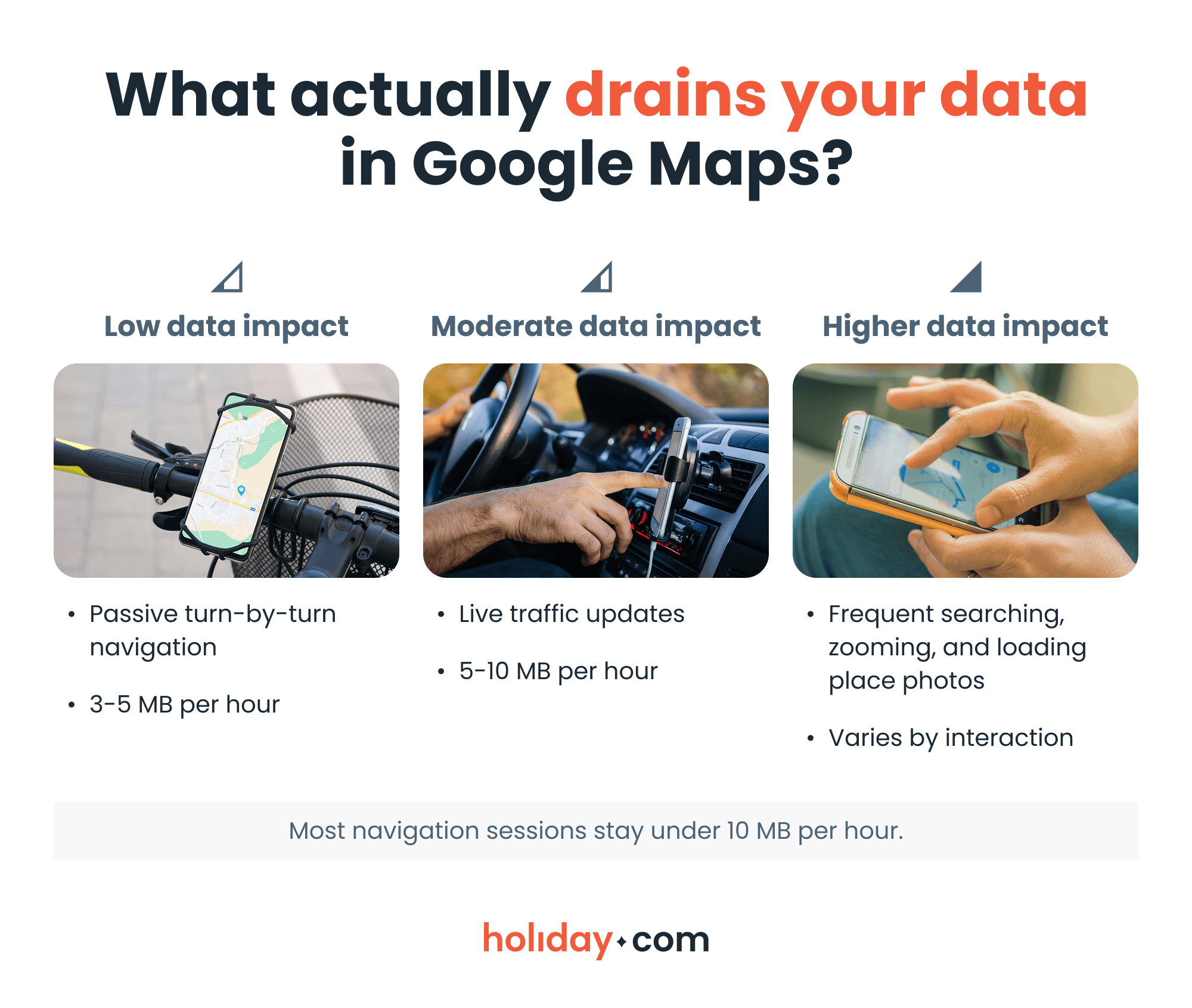
What actually drains your data in Google Maps?
Understanding Google Maps’ hourly usage is helpful, but how you use the app matters even more. Some actions barely move the needle, while others increase consumption much faster.
Does Google Maps use a lot of data compared to other apps?
Compared to streaming platforms and short-form video apps, Google Maps is a lightweight app. While navigation can stay under 10 MB per hour, other common apps consume more. Here’s a comparison with some top apps:
| Application | Approximate data usage per hour |
| Google Maps | 3-10 MB |
| Spotify (standard to high quality) | 40-150 MB |
| TikTok | 70-150 MB |
| Netflix (HD) | 1-3 GB |
If you’ve ever streamed your favorite series, you’ve likely used more data than an entire day of navigation. In general, you can be confident that Google Maps itself is unlikely to use up all your data. The more likely culprits are high-usage video apps or apps that run in the background.
How to check Google Maps data usage
If you want to see exactly how much data Google Maps has used, you can check in your phone’s settings. Here’s what to do whether you have an iPhone or an Android device.
iPhone
Checking your Google Maps data usage is simple and straightforward on an iPhone:
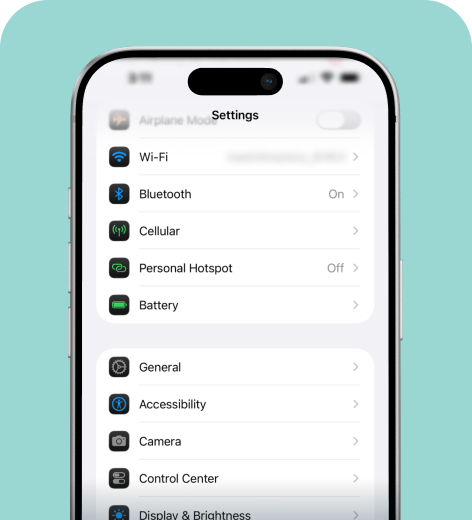
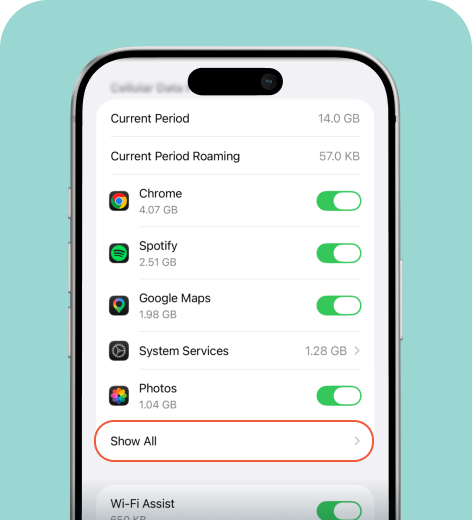
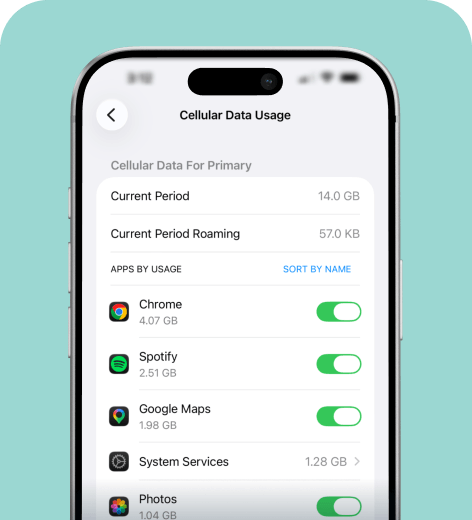
Note that “Current Period” reflects usage since you last reset your data statistics.
Android
The process for Android is similar to the iPhone, but with slightly different terminology.
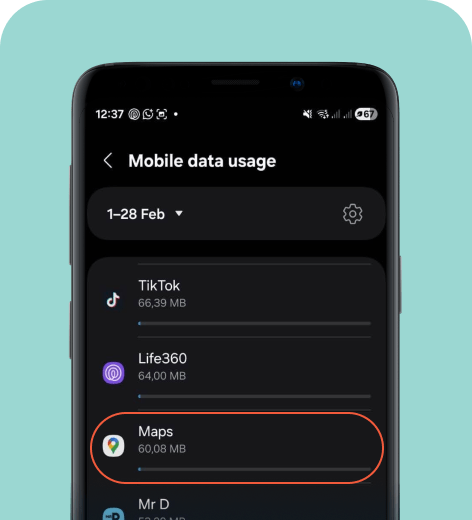
Samsung
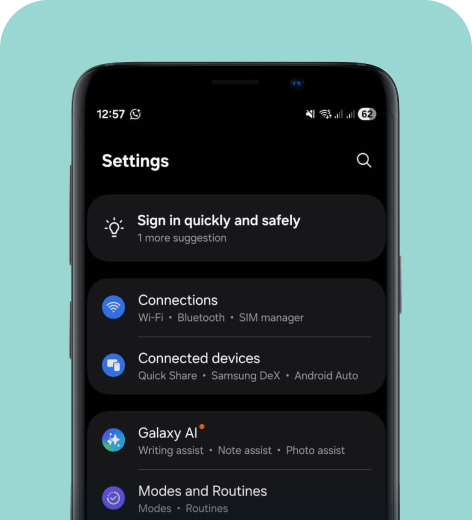
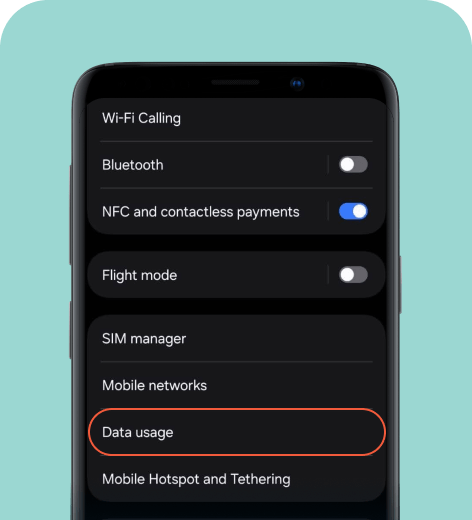
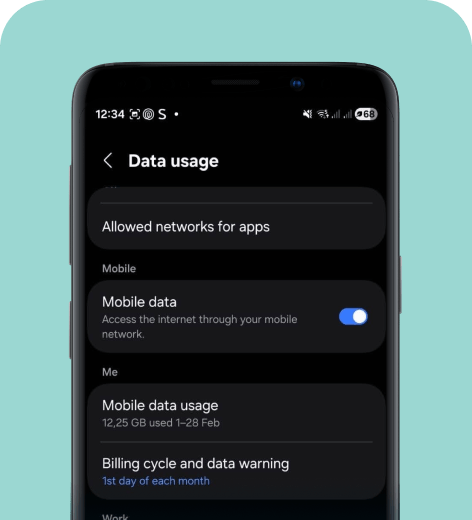
Here’s how to check data usage on Samsung devices.
Pixel
To find your app usage:
- Go to Settings > Network & internet > Internet.
- Next to your cellular provider, tap Settings.
- Select App data usage and look for Google Maps.
Xiaomi
To see how much data you’ve used:
- Go to Settings > More connectivity options > Data usage.
- You’ll see a list of apps ranked by data consumption.
- Scroll down to find Google Maps.
Many Android devices use custom interfaces, which can make it harder to find what you’re looking for. If you’re unsure, you can use the search function from the main Settings menu and type “data usage” to find the right menu.
How to reduce Google Maps data usage while traveling
Google Maps’ basic features use very little data, so avoiding its more advanced functions will normally be enough to keep it accessible. Here are a few practical ways to keep usage low for extra peace of mind while traveling:
- Download offline maps. Use Wi-Fi at your hotel or accommodation to download maps for the areas you’re planning to explore. Navigation will then work without requiring active mobile data.
- Don’t use satellite or 3D map view. These modes load higher-resolution imagery than the standard map, which increases data use. The standard map view uses much less data with no difference in functionality.
- Avoid loading business pages. Pulling up photo-heavy destination reviews or restaurant menus will consume extra data. Do this research over Wi-Fi rather than on the go.
- Limit frequent zooming. Zooming in or out and exploring new areas of the map uses data by forcing additional map tiles to load.
- Turn off live traffic updates. Real-time route adjustments refresh the map more often, using slightly more data.
HOT TIP
Download your offline maps before leaving your Wi-Fi zone, then switch your phone to airplane mode for a few minutes to test the offline maps. This ensures navigation works properly before you head out.
Use our tips to manage Google Maps’ data usage
Google Maps uses between 3 MB and 10 MB per hour for standard navigation. Even a full-day road trip usually stays under 40 MB. Interactive browsing is what increases consumption, so it’s a lightweight app if you stick to passive turn-by-turn navigation.
For most travelers, Google Maps won’t significantly impact your data plan, especially if you download offline maps and avoid satellite mode. Streaming or social media apps use much more data than navigation apps like Google Maps.
If you’re traveling internationally and want predictable connectivity without tracking every megabyte, an unlimited travel eSIM from holiday.com makes it easy to stay connected without worrying about your home carrier’s roaming charges. That way, you can focus on navigating new places, not monitoring your data.
FAQ
-
Does Google Maps use data when not navigating?

Yes, but only minimally. If the app is open and actively refreshing maps, it will use small amounts of data. However, background usage is low unless you enable features like location sharing or live traffic updates.
-
How long will 1 GB of data last on Google Maps?
With standard navigation using 3-10 MB per hour, 1 GB can support well over 100 hours of directions. Even with occasional traffic updates or short road trips, most travelers won’t come close to using 1 GB solely on Google Maps.
-
Does GPS use mobile data?
No, GPS itself does not use mobile data. GPS relies on satellite signals to determine your location. Navigation apps like Google Maps use mobile data to download maps and live traffic updates, but the amount of data is minimal for most use cases.
-
How much data does Google Maps use in 8 hours?
An 8-hour drive with standard navigation uses around 24-40 MB. Usage may increase if you often search for places, zoom in and out, or use satellite view.
-
Can I use Google Maps internationally without roaming?
Yes, if you download offline maps before your trip. Navigation will still work without an active data connection, although live traffic and real-time updates won’t be available. Alternatively, a travel eSIM can help you avoid traditional roaming charges while staying connected.
-
Is satellite mode worth the extra data usage?
Satellite mode offers more visual detail but consumes more data than the regular map layout. If you’re concerned about staying within your limit, it helps to understand how Maps compares to other apps you might be using.
About our author

You might also be interested in...
-
 eSIM
eSIMHow to turn off an eSIM: Quick guide and tips in 2026
Turning off your eSIM can be helpful in many situations. You may want to disable a travel data plan, switch to another SIM, or avoid roaming charges. The process is quick and you can do it from your p...
 Ana Marković
 06.16.2026
 -
 eSIM
eSIMWhat is an ICCID number and why does it matter?
Knowing how to find your integrated circuit card identifier (ICCID) number makes it easier to manage devices that use SIM cards and eSIMs. When things are going smoothly, you hardly have to think abou...
Sarah Kirton
06.16.2026 -
 eSIM
eSIMeSIM vs. data roaming: Which is better for international travel?
Staying connected while traveling is easier than ever, but the way you access mobile data can make a big difference in your experience and costs. Two popular options are purchasing a travel eSIM or re...
Dawn Prevete
06.09.2026 -
 eSIM
eSIMeSIM vs physical SIM: Pros, cons, and which one is right for you?
An eSIM (embedded SIM) is the digital equivalent of a physical SIM card built into your device. It allows you to activate and manage cellular plans entirely through software, meaning there’s nothing...
Ivana Shteriova
06.08.2026 -
 eSIM
eSIMHow to delete data usage history in 2026: A step-by-step guide
You can erase the data usage counters on your phone, but you can’t permanently erase your carrier’s system-level logs. Deleting your local statistics so the counter returns to zero takes only a fe...
Ana Marković
06.08.2026 -
 eSIM
eSIMDoes an eSIM drain your battery? Fact versus fiction
While eSIMs use the same hardware as physical SIM cards and consume virtually the same power, there are times when you might notice your device’s battery draining faster than usual. Most often, itâ€...
Sarah Kirton
06.08.2026