


Running out of data before the end of your billing cycle can be frustrating. Suddenly, your carrier is throttling your speeds, or you’re facing unexpected overage charges. It’s even worse when you’re traveling and worried about expensive roaming fees.
Most data drains happen unnoticed in the background. Streaming apps auto-play in HD, social media refreshes constantly, cloud backups sync over cellular, push notifications update in real time. You usually won’t notice something’s wrong until it’s too late.
The good news? You can cut back on mobile data immediately with a few simple changes. In this guide, we’ll show you the fastest ways to cut back and take control of what’s draining your plan.
What do Low Data Mode and Data Saver do?
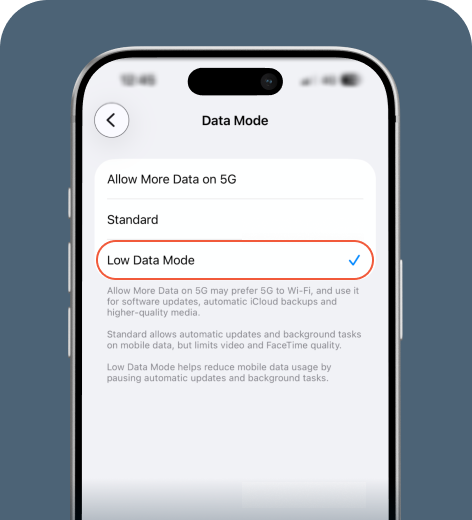
Low Data Mode (iPhone) and Data Saver (Android) settings reduce the amount of data your phone uses behind the scenes. It’s one of the quickest ways to reduce your data consumption without changing how you use your apps.
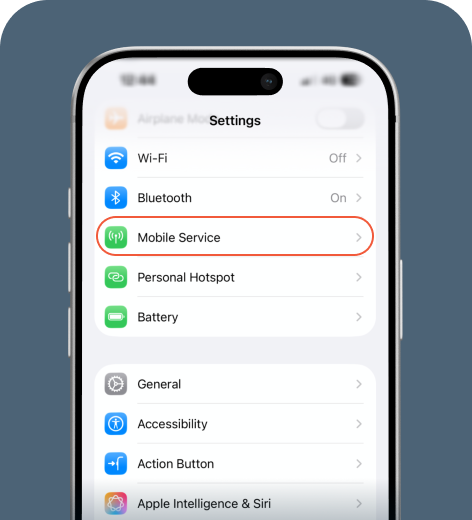
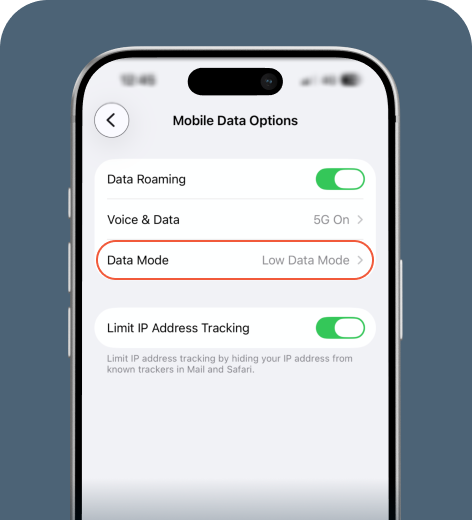
Low Data Mode on iPhone
To restrict background data on an iOS device:
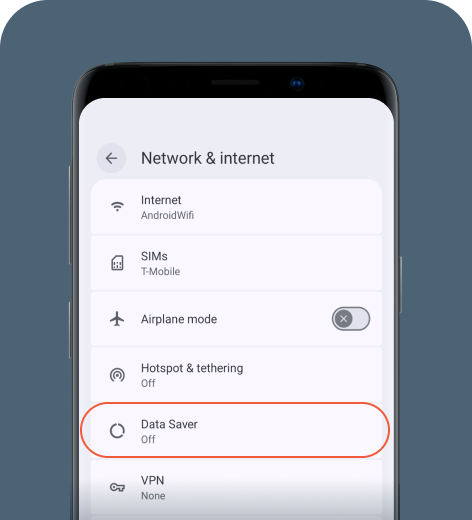
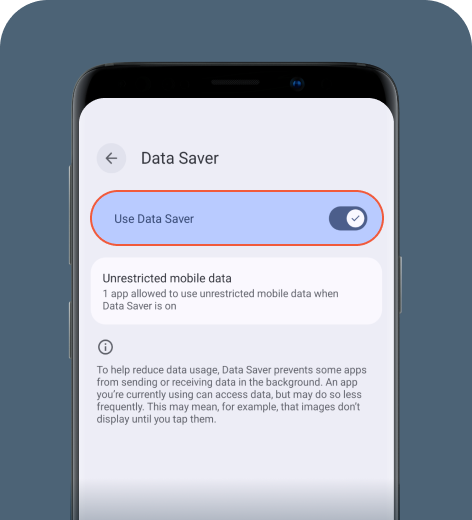
Data Saver on Android
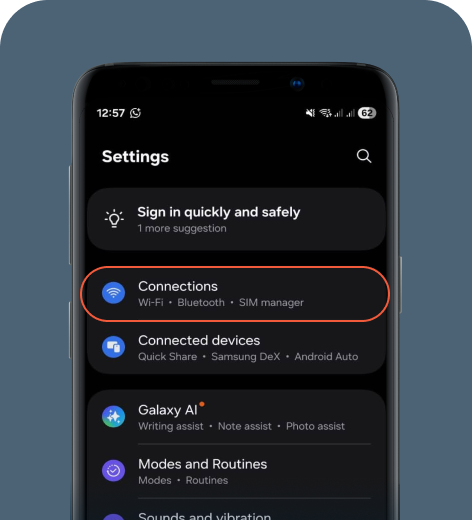
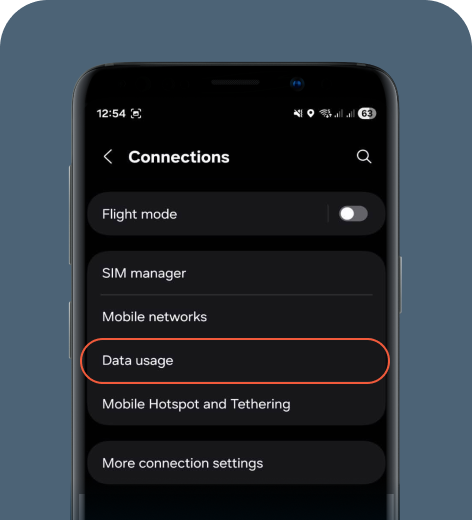
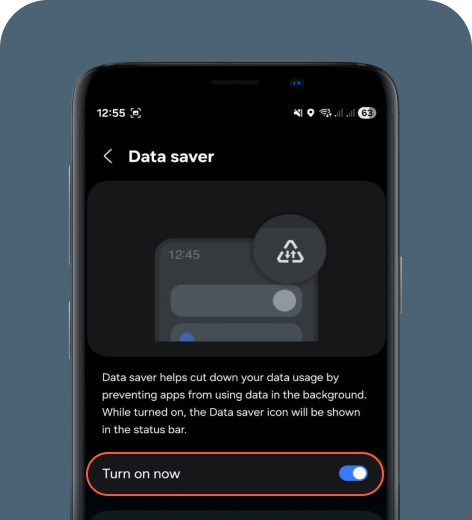
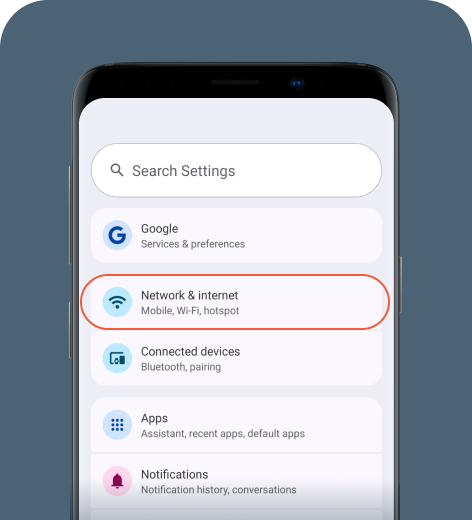
Here’s how to enable this built-in feature on an Android device.
On Samsung
On Google Pixel
On Xiaomi
- Go to Settings > Connection & sharing (or SIM cards & mobile networks, depending on your OS version).
- Tap Data usage.
- Toggle Data saver on.
How to stop apps from using data in the background
Apps can continue consuming data in the background even when you’re not actively using your phone.
Many apps continue using data even when your screen is off. Limiting background activity can significantly reduce how much data your phone consumes.
Here’s a simple checklist:
- Disable background app refresh. On iPhone, go to Settings > General > Background App Refresh. Choose Wi-Fi or turn it off for specific apps.
- Restrict background data per app. On Android, go to Settings > Apps. Select an app and then tap on Mobile Data & Wi-Fi. Toggle Background data off.
- Turn off automatic app updates over cellular. In your App Store or Google Play settings, set updates to Wi-Fi only.
- Pause cloud backups. Ensure photos and file backups happen over Wi-Fi only.
How to reduce streaming and social media data usage
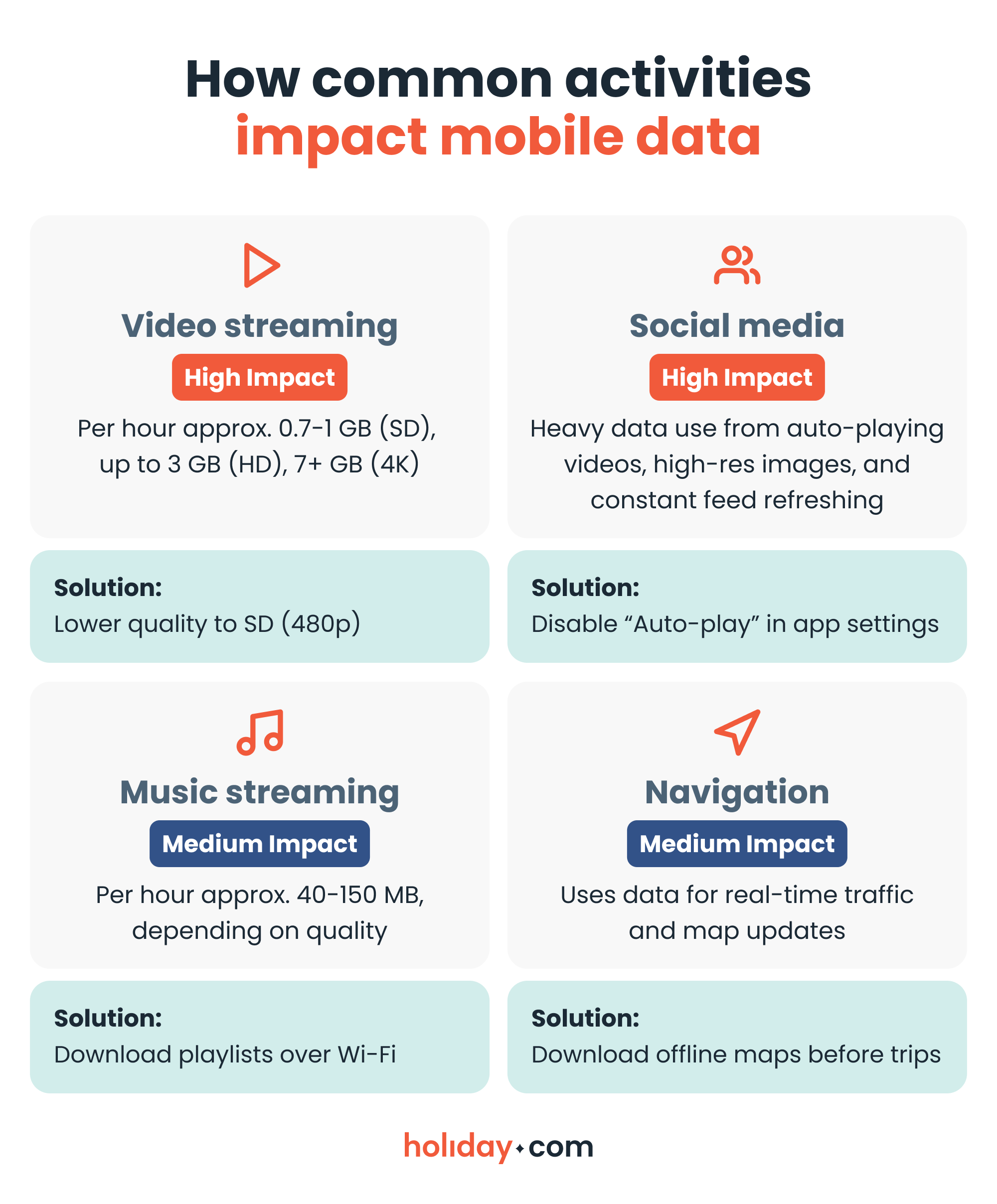
Streaming video is the fastest way to burn through your monthly allowance. One hour of HD video can use up to 3 GB of data, while SD may use around 1 GB or less.
Before you adjust your settings, check how common activities consume data:
What settings to adjust for apps
Dropping video quality is one of the highest-impact changes you can make. Here’s what to update:
- Streaming apps: For Netflix, YouTube, Prime Video, and the like, set playback quality to SD when using a cellular connection.
- Social media apps: For TikTok, Facebook, Instagram, and more, turn off auto-play or enable built-in data saver modes.
- Music streaming: Download playlists over Wi-Fi for Spotify and Apple Music instead of streaming on the go.
Which apps use the most data?
If you’re unsure about what’s draining your plan, your phone can show you exactly which apps are responsible.
On iPhone
Go to Settings > Mobile Service. Scroll down to see data usage by app.
On Samsung
Go to Settings > Connections > Data usage > Mobile data usage.
On Google Pixel
Go to Settings > Network & Internet > SIMs > Select your carrier > App data usage.
On Xiaomi
Go to Settings > Connection & sharing > Data usage.
Look for apps using multiple gigabytes per month. If an app isn’t essential, turn off cellular data access so it only works over Wi-Fi.
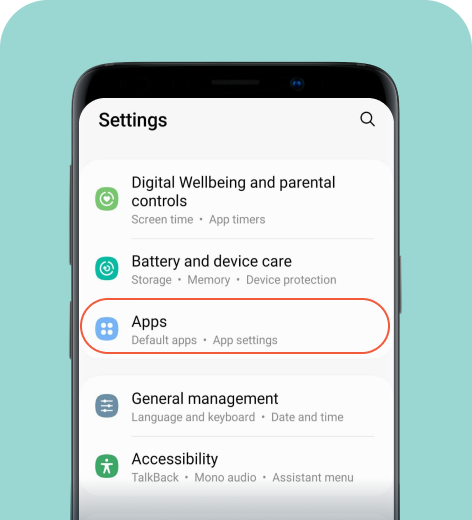
How to clear an app’s cache on Android
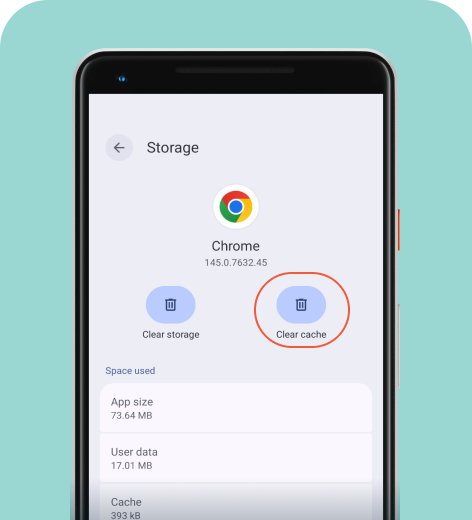
If a specific app shows unusually high usage, a glitch may be causing it to continuously download background files. Clearing the app’s cache deletes temporary files (such as images and videos) and can prevent unexpected data leaks. Note that this feature is currently only available on Android.
On Samsung
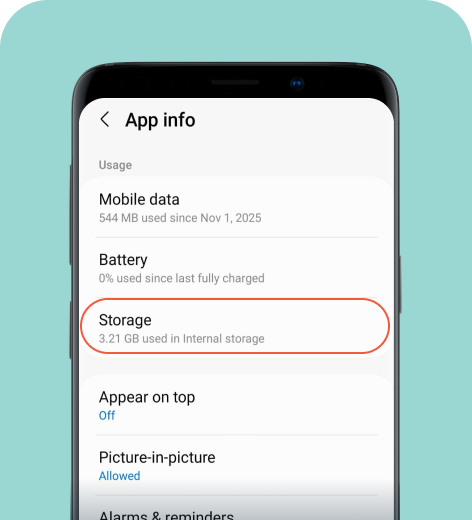
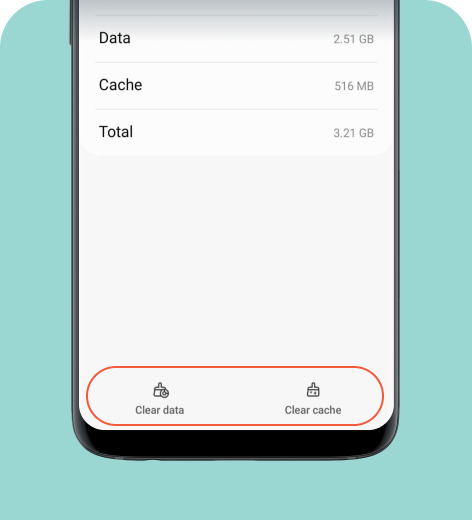
On Google Pixel
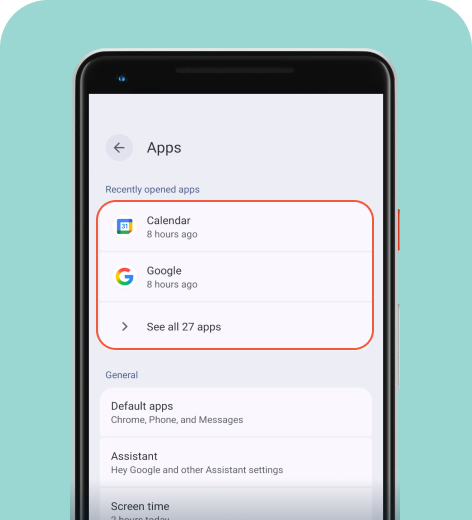
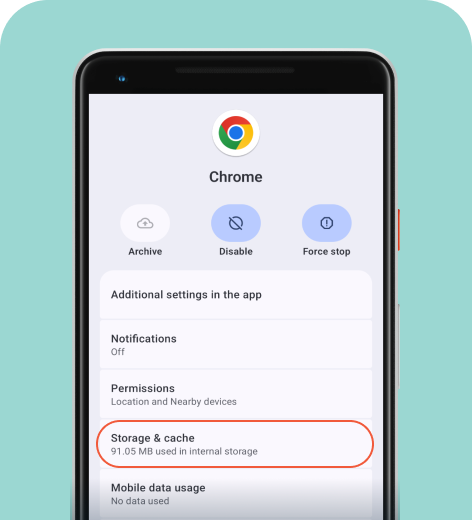
On Xiaomi
- Go to Settings > Apps > Manage apps.
- Select the app of your choice and choose Storage.
- Tap Clear data > Clear cache.
How to save mobile data while traveling
Data management becomes even more important when you’re abroad. International roaming fees can be expensive and prepaid travel data often comes with strict limits.
Here’s how to stay within your limits while traveling:
- Disable data roaming unless you need it.
- Download offline maps before leaving your hotel.
- Use Wi-Fi selectively and avoid unsecure public networks.
- Track daily usage so you don’t run out of data mid-trip.
If you’re a heavy data user, opting for an eSIM can eliminate the need to micromanage your settings. An eSIM like holiday.com offers unlimited data for the duration of your trip, so you can keep using your apps without worrying about hitting a data limit or incurring roaming fees.
Lower your data usage with our simple steps
To reduce data usage without giving up your favorite apps, focus on the changes that make the biggest difference. Turn on Low Data Mode and limit background access first, then adjust your streaming settings as needed.
A little preparation, whether refining your app settings or choosing a holiday.com eSIM with unlimited data, can help you stay connected without the stress of an unexpectedly high phone bill.
FAQ
-
Why is my phone using so much data?

Most high data usage comes from video streaming, social media auto-play, cloud backups, and background app refresh. Even if you aren’t actively using your phone, apps can consume data in the background.
-
Does Low Data Mode really work?
Yes. Low Data Mode reduces background activity and limits automatic downloads, helping your phone use less data. It won’t eliminate all mobile data use, but it can noticeably decrease passive consumption.
-
Which apps use the most data?
Apps that stream video or auto-play short clips typically use the most data. Social media platforms with constant video content are also heavy consumers. You can check your phone’s cellular settings to see exactly which apps use the most data on your device.
-
How much data does streaming use?
Standard-definition video may use around 1 GB per hour, while HD video uses up to 3 GB per hour or more. 4K streaming uses even more. Changing the quality to SD can cut usage by more than half.
-
How can I lower data usage while traveling?
Turn off roaming when not needed, download offline maps, reduce streaming quality, and monitor daily usage. Choosing a travel-friendly eSIM, such as holiday.com eSIM, can also help you avoid surprise roaming charges.
-
Can I avoid data overage charges entirely?
Yes. You can lower the risk by setting usage alerts with your carrier and adjusting your phone’s data limits. Regularly checking your usage is also important, especially while traveling.
About our author

You might also be interested in...
-
 eSIM
eSIMHow to turn off an eSIM: Quick guide and tips in 2026
Turning off your eSIM can be helpful in many situations. You may want to disable a travel data plan, switch to another SIM, or avoid roaming charges. The process is quick and you can do it from your p...
 Ana Marković
 06.16.2026
 -
 eSIM
eSIMWhat is an ICCID number and why does it matter?
Knowing how to find your integrated circuit card identifier (ICCID) number makes it easier to manage devices that use SIM cards and eSIMs. When things are going smoothly, you hardly have to think abou...
Sarah Kirton
06.16.2026 -
 eSIM
eSIMeSIM vs. data roaming: Which is better for international travel?
Staying connected while traveling is easier than ever, but the way you access mobile data can make a big difference in your experience and costs. Two popular options are purchasing a travel eSIM or re...
Dawn Prevete
06.09.2026 -
 eSIM
eSIMeSIM vs physical SIM: Pros, cons, and which one is right for you?
An eSIM (embedded SIM) is the digital equivalent of a physical SIM card built into your device. It allows you to activate and manage cellular plans entirely through software, meaning there’s nothing...
Ivana Shteriova
06.08.2026 -
 eSIM
eSIMHow to delete data usage history in 2026: A step-by-step guide
You can erase the data usage counters on your phone, but you can’t permanently erase your carrier’s system-level logs. Deleting your local statistics so the counter returns to zero takes only a fe...
Ana Marković
06.08.2026 -
 eSIM
eSIMDoes an eSIM drain your battery? Fact versus fiction
While eSIMs use the same hardware as physical SIM cards and consume virtually the same power, there are times when you might notice your device’s battery draining faster than usual. Most often, itâ€...
Sarah Kirton
06.08.2026