


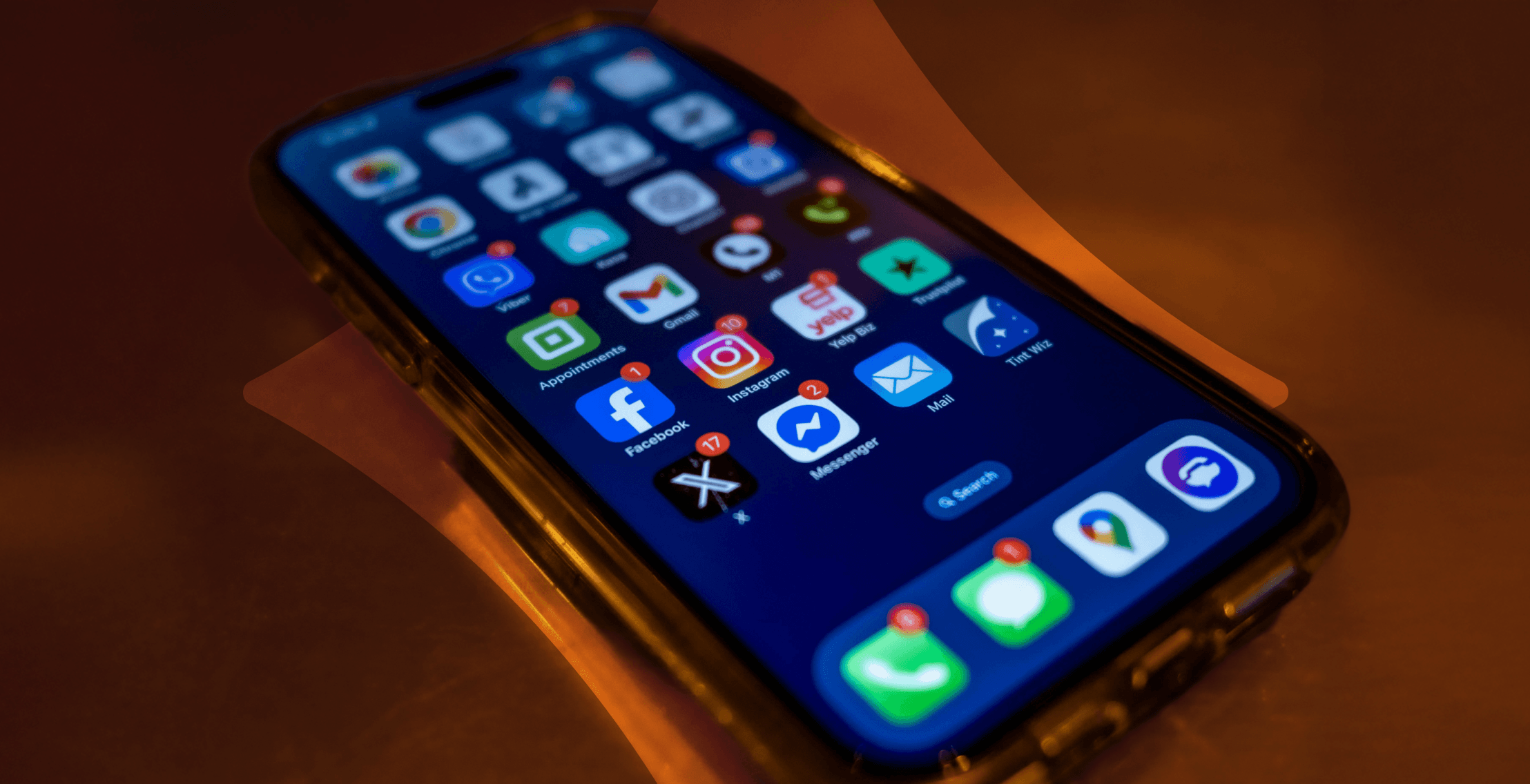
Your phone handles multiple processes at once, so apps can keep running even when you’re not using them. This hidden activity drains your battery and quietly consumes mobile data.
The good news is that you can prevent apps from refreshing content when they aren’t open on your screen with a few quick settings changes. Do be careful: Some apps rely on background access to function and restricting them too much can lead to missed notifications.
Here are the fastest ways to limit background activity on both Android and iPhone. We’ll also explain which apps you should leave untouched and why.
How to stop background apps on iPhone
Apple’s iOS manages background processes differently from Android. The main tools for controlling background activity on an iPhone involve background app refresh and automatic updates.
Method 1: Configure the Background App Refresh settings
Disabling this feature prevents apps from repeatedly pre-loading new content when you aren’t actively using them. It’ll help you conserve battery life and can also save you a few hundred megabytes.
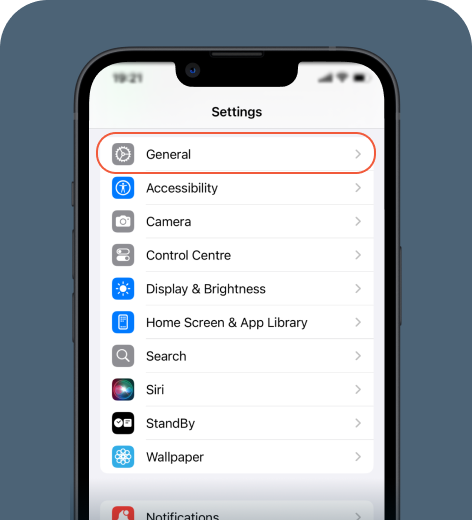
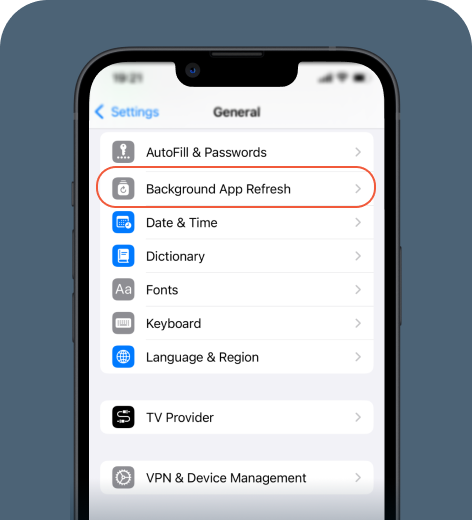
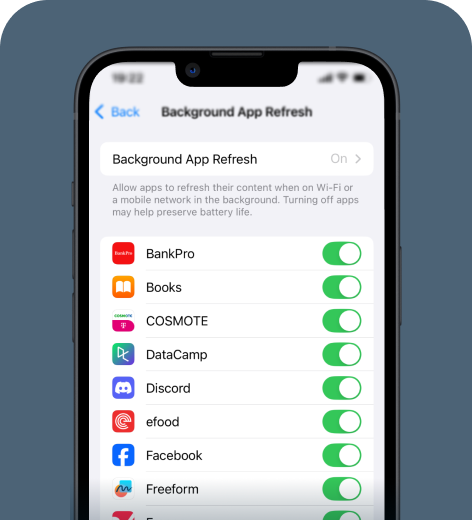
If you tap Background App Refresh, you’ll also get to choose how the setting behaves over different connections. For example, you can choose to enable it only over Wi-Fi.
Method 2: Enable Low Data Mode
This setting protects your cellular data allowance. It pauses heavy background tasks, such as photo backups and updates.
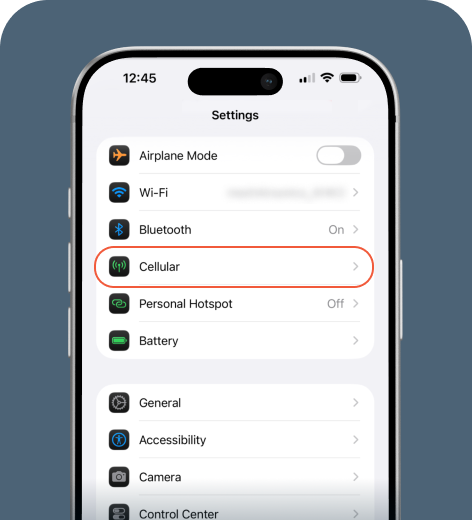
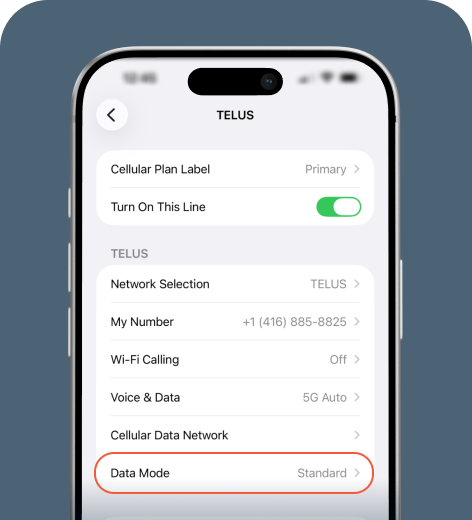
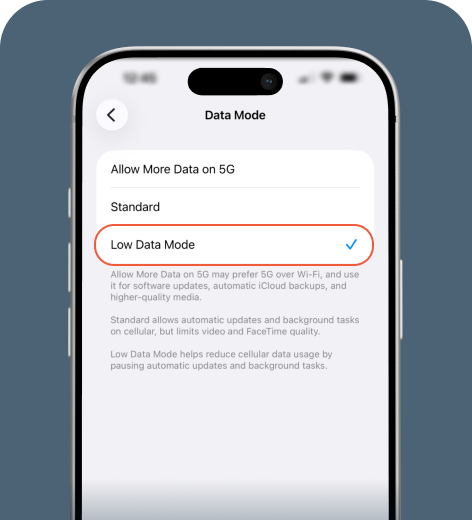
Keep this setting enabled to reduce data usage. It’s essential if you’re on a limited data plan.
HOT TIP
Checking your data consumption frequently or setting a data limit reminder can help you better manage your allowance.
Method 3: Limit location tracking
Many apps request access to your location even when they aren’t actively in use. Here’s how to adjust location tracking.
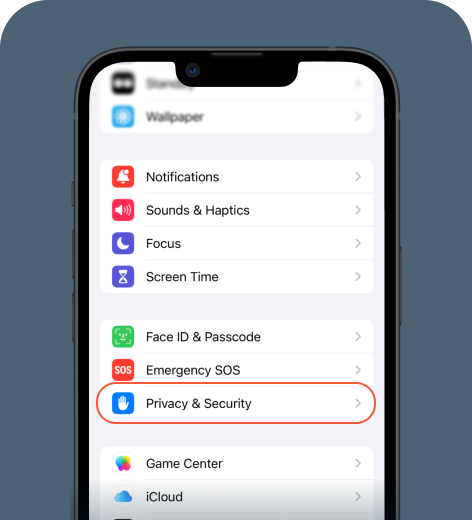
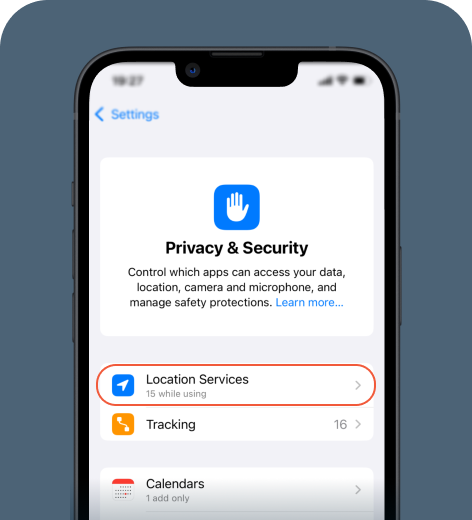
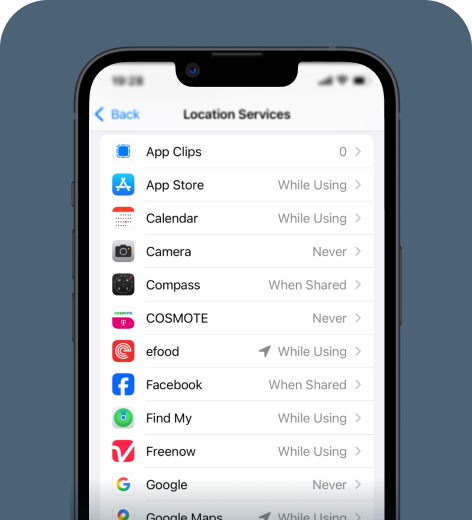
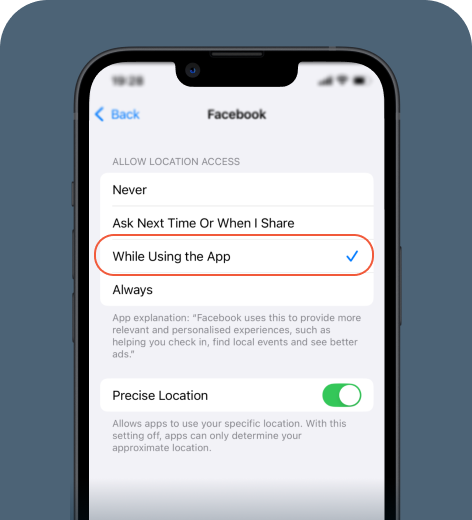
Limiting location access prevents apps from checking GPS in the background, helping improve battery life.
How to turn off background apps on Android
Android phones offer several ways to control your background activity. The exact settings may vary slightly depending on your phone manufacturer, but the core options are available on most Android devices.
Method 1: Restrict background usage per app
This is the most effective way to stop apps from running behind the scenes without uninstalling them. It can significantly boost performance.
This method works well if you’ve noticed specific apps that consume a lot of battery by reserving large amounts of processing power.
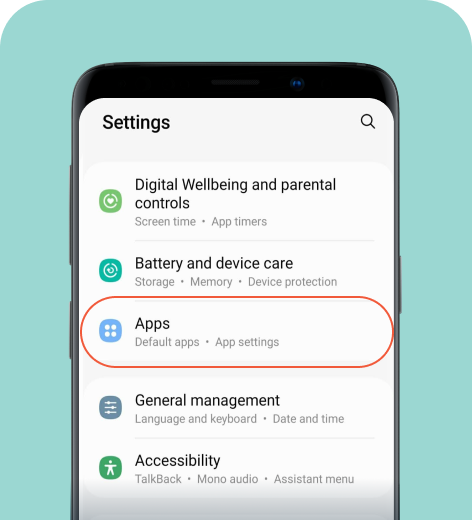
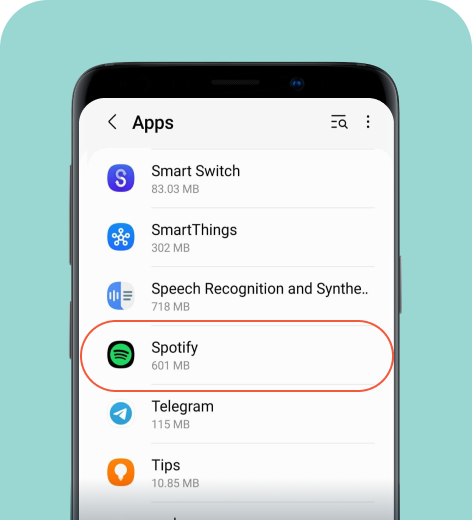
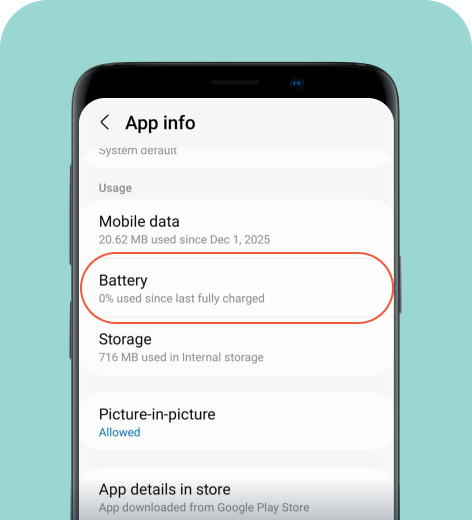
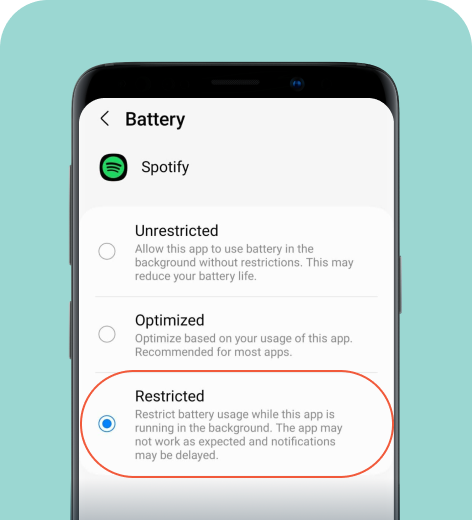
On Samsung
Follow these steps to restrict apps from running in the background.
On Pixel
- Go to Settings > Apps > See all apps.
- Tap the app you want to restrict.
- Select App battery usage.
- Choose Restricted.
On Xiaomi
- Go to Settings > Apps > Manage apps.
- Tap the app you’d like to restrict.
- Select Battery saver.
- Choose Restrict background apps.
HOT TIP
Always check your background activity after downloading an app or completing an OS update. System updates can sometimes reset your permissions, and new apps often start syncing data immediately after installation.
Method 2: Disable background data for a specific app
Social media and cloud services typically consume large amounts of data because they refresh content in the background. You can stop this by disabling background data access for individual apps.
This setting allows the app to use data only when you open it manually. It works well if you’re looking to conserve data or limit apps that don’t need constant connectivity, such as streaming apps or productivity tools.
Check your data consumption before making adjustments.
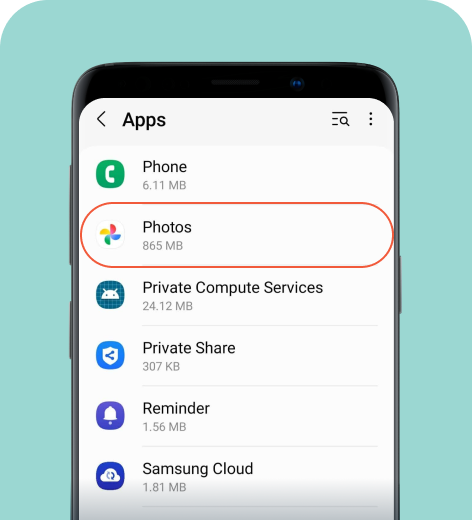
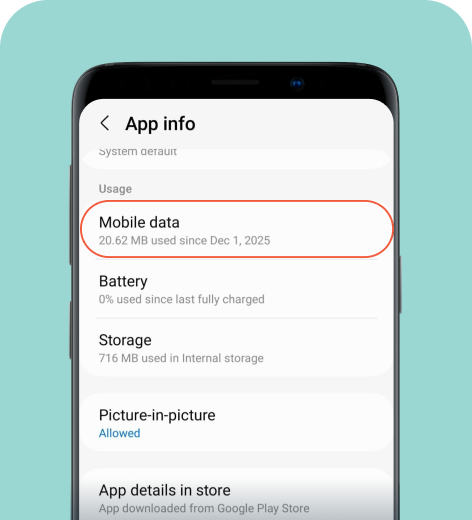
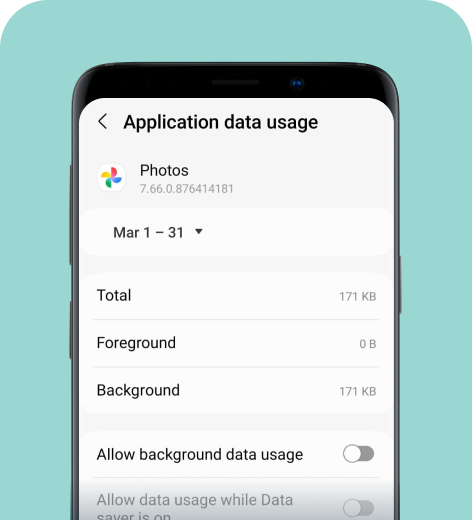
On Samsung
You can disable certain apps from running in the background in a few easy steps.
On Pixel
- Go to Settings > Apps > See all apps.
- Tap the app you want to disable.
- Select Mobile data usage.
- Toggle off Background data.
On Xiaomi
- Go to Settings > Apps > Manage apps.
- Tap the app you want to disable.
- Select Data usage.
- Toggle off Background data.
Method 3: Force stop an app
This option is helpful if an app seems unresponsive or drains your battery quickly. Note that force-stopping is a one-time action with no persistent effect. Many apps restart background services when the system needs them again (e.g., the next time you open the app).
If you no longer use an app and want to stop it from accessing data and consuming power, consider uninstalling it.
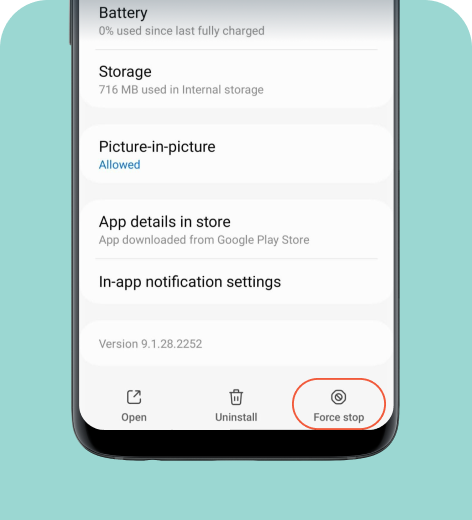
On Samsung
Force-stopping an app immediately shuts down all its running processes. Here’s how to do it.
On Pixel
- Go to Settings > Apps > See all apps.
- Tap the app you want to stop.
- Select Force stop.
On Xiaomi
- Go to Settings > Apps > Manage apps.
- Tap the app you want to stop.
- Select Force stop.
Method 4: Configure deep sleep settings (Samsung)
Samsung offers an extra layer of control for stopping background apps. Here’s how to configure the settings.
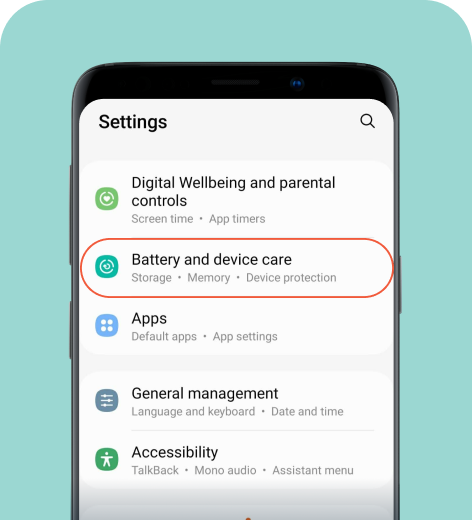
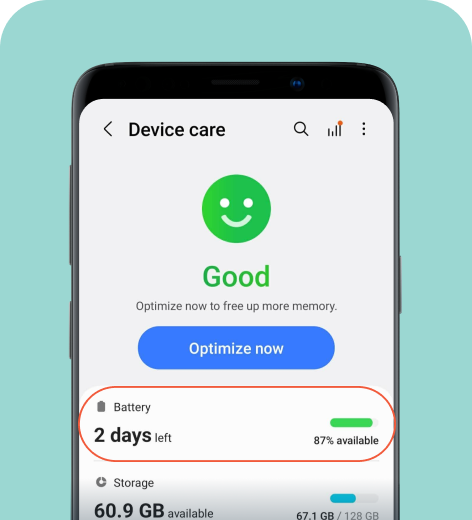
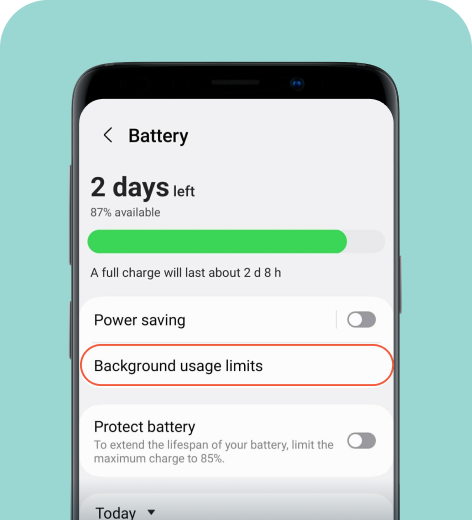
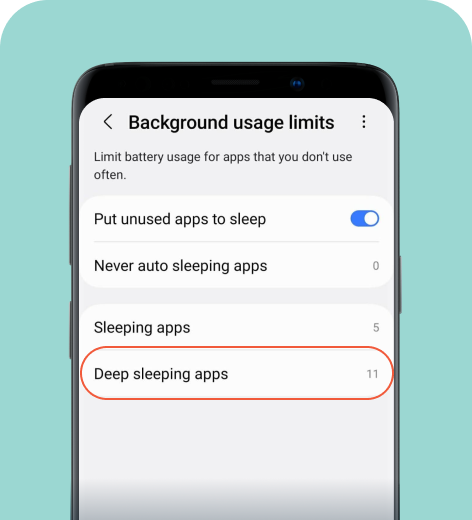
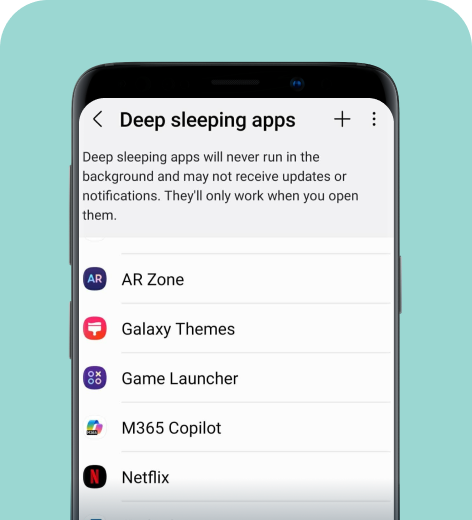
Apps added to the deep sleep section never run in the background until you reopen them.
HOT TIP
On Android, there are numerous third-party RAM boosters and task-killing apps designed to stop background apps. However, we don’t recommend downloading these, as they can drain your battery faster and sometimes contain malicious spyware.
Why should you turn off background apps?
Stopping unnecessary background activity can improve several aspects of your phone’s performance.
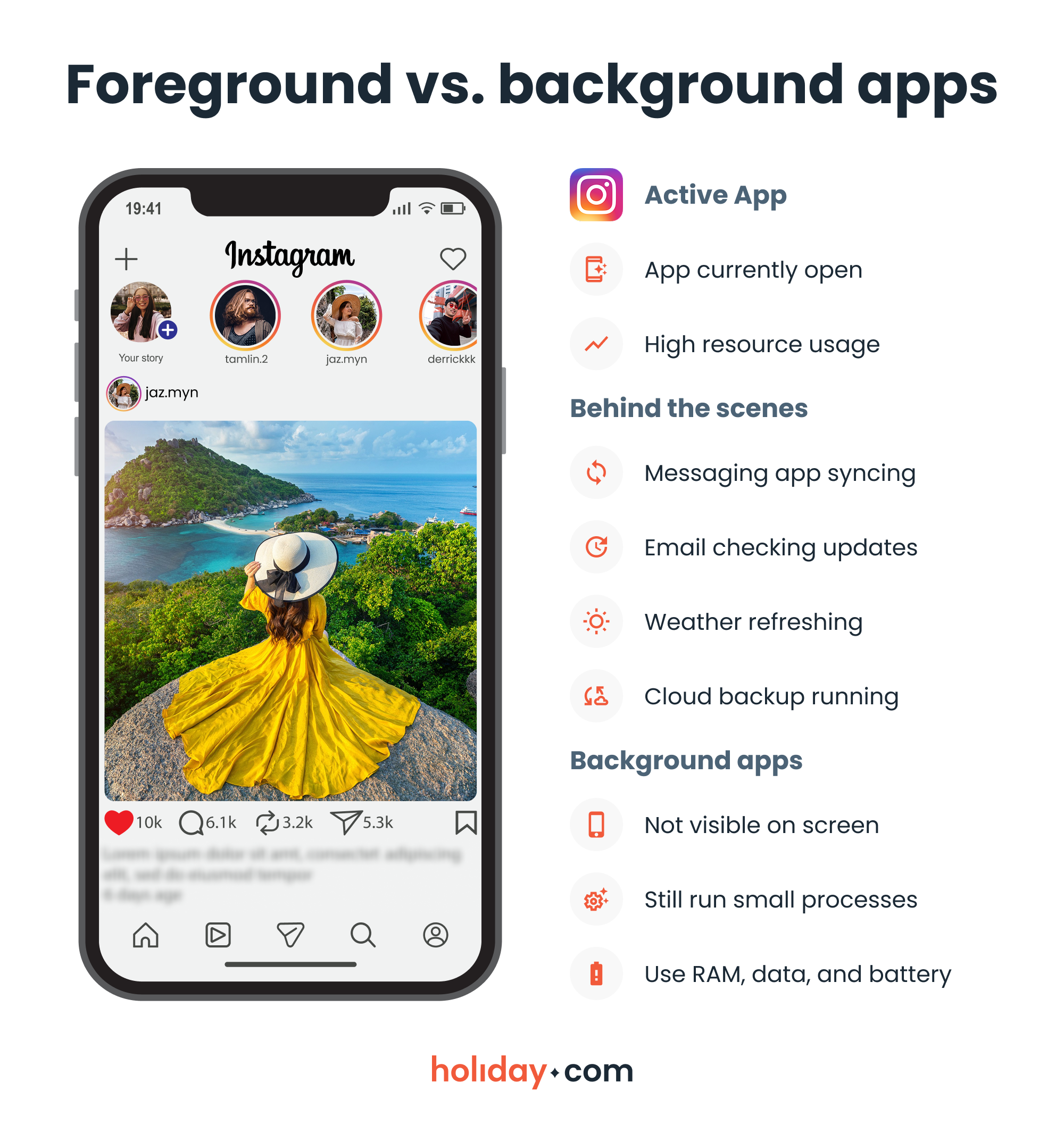
Improve device performance
Each background process requires memory and resources. When too many apps run simultaneously, your phone becomes sluggish, with slower load times and reduced responsiveness.
Extend battery life
Many apps regularly sync data or monitor notifications. Each task uses a small amount of power, but when dozens run simultaneously, the cumulative drain becomes significant. Limiting background activity extends your phone’s battery life. This is essential during trips when you rely on navigation tools and you have limited chances for charging opportunities.
Reduce mobile data consumption
Background apps also consume mobile data. Services may automatically download updates or back up files without you realizing it. If you have a limited data plan, restricting these processes can help prevent overages.
This is particularly important while traveling since roaming fees are high and international plans often come with strict limits. Background syncing (especially photo backups) will eat up your available data.
HOT TIP
If you’d rather focus on your trip instead of managing your data, consider opting for a travel eSIM to access all your favorite apps. You can set up a holiday.com eSIM in just a few minutes, unlocking unlimited data for 150+ destinations.
Restricting vs. closing the app
You may think that swiping apps away from the multitasking view solves the problem. In reality, that action usually closes the visible interface while the app’s background services continue running. Messaging apps, social media platforms, cloud storage tools, and navigation apps often keep refreshing data even after you think you’ve closed them.
It might seem logical to close every app, but your phone manages memory automatically. Constantly closing apps can actually slow things down because the system has to use more resources to reopen them later. It’s better to control background usage through your phone’s settings.
What apps shouldn’t you restrict?
Some apps rely on background processes to function correctly. If you restrict them too much, you may stop receiving important alerts.
- Messaging apps. Limiting their background activity too much can stop notifications or delay incoming messages.
- Navigation apps. If you disable location tracking completely, directions or traffic updates may stop working as intended, which could cause issues on the road.
- Financial and security apps. Restricting banking apps or two-factor authentication tools may stop them from sending alerts and verification prompts.
Don’t eliminate all background processes. The goal is to prioritize apps that truly need it to work.
Prioritize essential apps and restrict others
Learning how to stop apps from running in the background is one of the most effective ways to improve your phone’s performance. By adjusting background data permissions or battery usage restrictions, you can reduce data usage spikes and extend your phone’s battery life.
The key is knowing which apps to restrict. Limiting background activity only for the tools that don’t need it will keep your phone efficient without missing out on important updates.
FAQ
-
Why do apps continue to run in the background?

Apps run in the background to update content or sync files. Your phone’s system allows it so apps stay responsive when you open them. Still, too many background processes can slow down your device.
-
Do background apps drain your battery?
Yes, background apps use small amounts of power to perform tasks like tracking location or sending notifications. When many apps run at once, this combined activity reduces your battery life.
-
Do apps running in the background use data?
Yes. Social media and cloud storage apps continue refreshing feeds or checking for updates even when you’re not using them. Restricting background data prevents these apps from using mobile data without you knowing.
-
How do you find background running apps?
You can view background activity through your phone’s battery or data consumption settings to see which apps consume the most resources. On Android, check individual app data and battery usage under Settings > Apps. On iPhone, review battery usage under Settings > Battery and data usage under Settings > Cellular or Mobile Service.
-
What happens if you stop apps from running in the background?
Stopping background apps reduces battery drain and lowers mobile data usage. Some apps may stop sending notifications or updating. Essential apps for messaging or navigation need background access to work properly, so you shouldn’t limit their activity completely.
-
What’s the fastest way to close apps?
The fastest method is using the multitasking screen and swiping apps away. Keep in mind this normally closes only the visible app interface. For a more complete stop, use your system settings to restrict background processes instead.
About our author

You might also be interested in...
-
 Tech
Tech120+ must have apps while abroad
Smartphones, and the digital technologies that support them, have transformed travel planning from frantic guidebook hunts to slick app-powered adventures. But sifting through thousands of options can...
 Lucca
Lucca 07.02.2026
 -
 Tech
TechHow to use hotspot on Android: Step-by-step guide
While convenient when there’s no reliable Wi-Fi network available, using a hotspot on an Android can drain your phone’s battery and eat through your data plan. The impact is even greater when you ...
Ivana Shteriova
06.10.2026 -
 Tech
TechWhat is a mobile hotspot? How it works and when to use it
A mobile hotspot can make life easier if your internet goes down while you’re working on a deadline or if the café you picked for a conference call doesn’t have Wi-Fi. If you overuse it, however,...
Ivana Shteriova
04.24.2026 -
 Tech
TechWhat does Low Data Mode mean and when to use it
Managing mobile data isn’t always straightforward. Background app updates and automatic downloads can quietly use data without you realizing it, which adds up if you’re on a limited plan or relyin...
Chené Murphy
04.08.2026