


A mobile hotspot can make life easier if your internet goes down while you’re working on a deadline or if the café you picked for a conference call doesn’t have Wi-Fi. If you overuse it, however, you can quickly run through your mobile data limit.
So what is a mobile hotspot anyway? And when is it worth using up your data plan for the added convenience? If you own a smartphone, you likely already have access to a hotspot in your device settings. The functionality enables you to connect other devices like laptops and tablets to the internet by turning your phone into a portable source of Wi-Fi.
While invaluable in certain scenarios, hotspots are notorious for draining phone batteries and rapidly using up mobile data. These drawbacks become more pronounced the more devices you connect. Besides only using the feature when absolutely necessary, there are steps you can take to improve your experience using mobile hotspots.
Once you learn how a mobile hotspot works, you can get more from your mobile hotspots. Learn how to reduce data consumption so you can stay connected longer.
How a mobile hotspot works
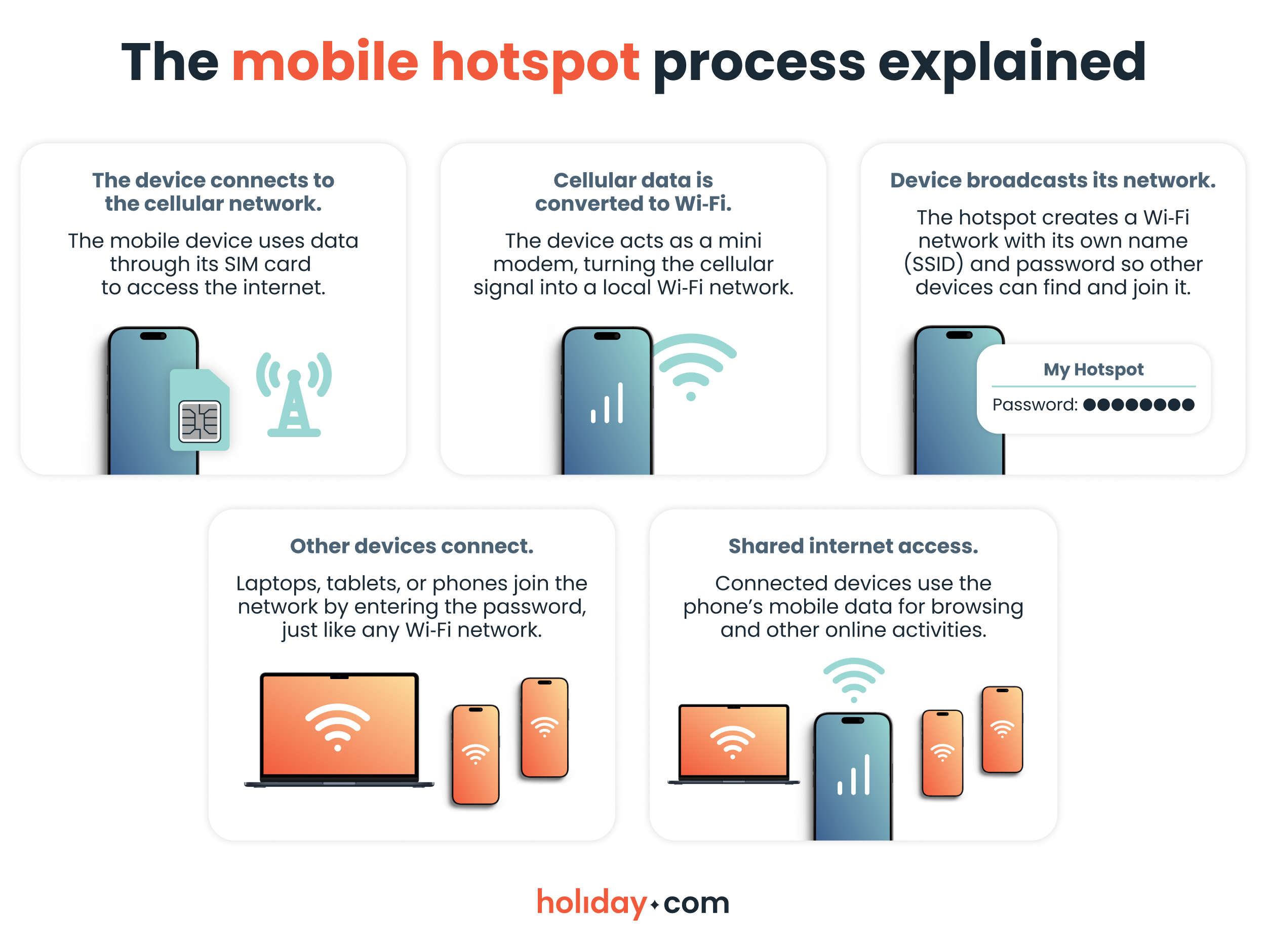
Mobile hotspots may seem complicated, but the process of turning your cell phone’s data into Wi-Fi is actually quite simple.
Hotspot vs. tethering vs. Wi-Fi sharing
A lot of people confuse mobile hotspots, tethering, and Wi‑Fi sharing because they all let you share your phone’s internet. Let’s break down the differences so you can quickly see which option fits your needs:
| Mobile hotspot | Tethering | Wi-Fi sharing | |
| Definition | Turns your phone into a mini router to share cellular data with other devices | Connects a single device to your phone via USB, Bluetooth, or Wi-Fi | Phone shares existing Wi-Fi connection with other devices (on select Android phones only) |
| # of devices | Typically 5-10 devices | Usually one device at a time | Up to 10 devices |
| Setup | Enable through your phone’s settings | Connect via USB cable or Bluetooth pairing and enable through settings | Enable through your phone’s settings |
| Security | Private, secure network with password protection | More private and harder to hack due to the direct connection | Depends on whether it’s public or private Wi-Fi being shared |
| Best for | Traveling, working remotely, or during internet outages | Prolonged remote work and sensitive tasks like banking | Connecting more devices to a single-login network (e.g., cruise Wi-Fi) |
When should I use a mobile hotspot?
Using a mobile hotspot drains battery and consumes data faster, so it’s best to limit it to situations where a reliable Wi‑Fi network isn’t available. Here are some common scenarios where a hotspot can be the most useful:
- Travel. Share your hotspot with travel companions or connect other devices to stay online while on the move between destinations.
- Remote work. Keep your laptop online when working from a café or other remote location.
- Internet outages. Use a hotspot as a backup when your home or office network goes down so you don’t miss important updates or messages.
- Public spaces. Connect your devices to your phone’s hotspot to avoid slow or unsecure public Wi‑Fi in libraries or coffee shops.
Are hotspots as fast as Wi-Fi?
In general, Wi‑Fi networks offer faster and more stable connections. However, overcrowded public networks are typically slower compared to hotspot speeds. Below you can see what factors affect hotspot and Wi-Fi speeds, and how these compare.
What factors affect mobile hotspot speeds?
- Network type: Most phones support 4G LTE, which is reliable for browsing and video calls. Some also support faster 5G, which is more stable for HD streaming and sharing access with multiple devices.
- Data plan: Your plan may include data limits or speed restrictions when using a hotspot. Some plans slow down hotspot speeds after a certain amount of data is used, while others charge extra for hotspot usage.
- Signal strength: The farther your phone is from a cell tower, the weaker the connection. In more remote areas, slower speeds can affect your phone’s connection speeds, including during hotspot usage.
- Number of devices connected: Crowding the hotspot by sharing it between multiple devices at once will result in slower speeds across each device.
What factors can affect Wi‑Fi speeds?
- Connection type: Different types of connections, like home fiber, cable, or DSL, offer different speeds. Fiber is usually the fastest, cable is mid-range, and DSL is slower.
- Internet plan: Whether at home or in public, the internet provider’s plan also affects your speeds. Higher-tier plans typically offer faster download and upload speeds, while basic plans may have lower speed limits or reduced performance during peak usage times.
- Router quality: Newer routers, like Wi‑Fi 6 models, are faster and can handle more devices at once.
- Interference: Walls, distance from the router, and having other devices on the same network can all slow your Wi‑Fi.
Here’s how typical hotspot and Wi‑Fi speeds compare in real-world use:
| Connection type | Average download speed | Average upload speed |
| 4G hotspot | 9-56 Mbps | 4-20 Mbps |
| 5G hotspot | 100-300 Mbps | 10-50 Mbps |
| Wi-Fi (cable) | 100-1000 Mbps | 5-50 Mbps |
| Wi-Fi (fiber) | 300-1000 Mbps | 300-900 Mbps |
How to enable mobile hotspots
Turning on a mobile hotspot is quick and simple. Follow the steps below to enable other devices to connect to your phone’s cellular data.
iPhone
Setting up a hotspot on your iPhone is straightforward:
- Open Settings > Personal Hotspot. Your mobile data must be turned on to access hotspot settings.
- Toggle on Allow Others to Join, and tap Wi-Fi Password to set login information for your hotspot.
- Create a secure password.
- Connect other devices to the hotspot using your unique network name (SSID) and password.
Android
The process for setting up a mobile hotspot on Android devices is similar to iPhone, but the labels are slightly different. Android layouts also differ by version and model, so type “hotspot” in the search bar from the main Settings menu if you get lost.
Samsung
- Open Settings > Connections > Mobile Hotspot and Tethering. Make sure to turn on mobile data in order to access hotspot settings.
- Tap Mobile hotspot and toggle it on.
- Tap Configure to set or change the network name and password.
- Connect other devices to the mobile hotspot using your unique network name (SSID) and password.
Pixel
- Open Settings > Network & internet > Hotspot & tethering. Mobile data must be on and Battery saver mode needs to be off.
- Toggle on the switch next to Wi-Fi hotspot.
- Tap Wi-Fi hotspot to adjust settings like the hotspot name and password.
- Connect other devices to the Wi-Fi hotspot using your unique hotspot name (SSID) and password.
Xiaomi
- Open Settings > Portable Wi-Fi hotspot.
- Tap Set up portable Wi-Fi hotspot to change the hotspot name and set a password.
- Toggle on Portable Wi-Fi hotspot to activate it.
- Connect other devices to the Wi-Fi hotspot using your unique hotspot name (SSID) and password.
How much data does a mobile hotspot consume?
Most data plans have a limit, which is the total amount of data you’re allowed to use per billing period. Depending on your plan, reaching your cap could result in slower speeds, extra charges, or a temporary service cutoff.
High-data activities like streaming or video calls can quickly push you toward your limit, especially when sharing your data with other devices. Knowing how much data common activities use can help you plan and avoid surprises:
| Activity | Average data usage per hour |
| Light browsing and email | 50 MB to 250 MB |
| Social media | 200 MB to 1.5 GB |
| Streaming music | 40 MB to 150 MB |
| Streaming videos | 700 MB to 3 GB |
| Video calls | 540 MB to 1.6 GB |
Tips for reducing hotspot data consumption
Keeping your hotspot data usage under control helps you stay online longer without hitting your plan limits. Follow these simple tips to reduce consumption:
- Limit connected devices. The fewer devices you connect, the less data your hotspot uses overall.
- Adjust video quality. Stream videos in standard definition instead of HD to save data.
- Pause automatic updates. Disable app and system updates on connected devices while using the hotspot.
- Turn off background activity. Disable apps that use background data, like automatic cloud backups or social media refreshes. Some devices have built-in settings to limit these activities when using a hotspot.
- Use data-saving modes. Enable low-data modes in apps and browsers to reduce consumption.
- Download in advance. Use a trusted Wi-Fi network to download books, movies, music, and podcasts to your device before traveling. You can avoid using your hotspot to stream media.
- Monitor usage. Regularly check how much data your hotspot is using to avoid exceeding your plan’s limit.
Stay safe while using a hotspot
Using a mobile hotspot is convenient, but it also opens a potential security risk if left unprotected. Follow this list to keep your connection secure and your data private:
- Use a strong password. Protect your hotspot with a WPA2 or WPA3 password so only authorized devices can connect.
- Change the default SSID. Rename your network to something neutral that doesn’t reveal your device or identity.
- Enable a firewall. If available, turn on your device’s built-in firewall if available to block unwanted connections.
- Turn off when not in use. Disable your hotspot to prevent unauthorized access and save battery.
- Limit connected devices. Only allow devices you trust to connect to reduce exposure.
- Avoid public sharing. Don’t leave your hotspot open without password protection in public spaces, even for a short time.
- Keep your device updated. Regular system updates can patch vulnerabilities and keep your hotspot secure.
When to use a hotspot instead of Wi-Fi
Use mobile hotspot only when a reliable Wi‑Fi network isn’t available. Hotspots can be useful in situations where you want to connect multiple devices on the go or need to stay online during internet outages. However, remember that hotspots drain battery and data faster than regular Wi‑Fi.
We recommend reserving your mobile hotspot for situations where convenience and security outweigh the negative trade-offs. Follow our tips to reduce hotspot data usage and keep your connection secure when sharing your mobile data with other devices.
FAQ
-
What is a mobile hotspot used for?

A mobile hotspot lets you share your phone’s cellular data with other devices when a Wi‑Fi network isn’t available. It’s useful during travel, internet outages, or any situation where you need a backup connection.
-
Does hotspot use more data?
Yes. Sharing your internet with other devices generally uses more data than using your phone alone. The more connected devices you have, the higher the data consumption will be.
-
Does a mobile hotspot drain your battery?
Yes. Running a hotspot can significantly drain your phone’s battery, especially with multiple connected devices.
-
Is mobile hotspot reliable for work?
Yes, it can be when you have access to 5G speeds. However, performance depends on various factors including signal strength, number of devices, and the type of tasks you’re doing.
-
How does a mobile hotspot connect other devices to the internet?
A mobile hotspot converts your phone’s cellular signal into a private Wi‑Fi network that other devices can join using a password.
-
Why can’t I enable hotspot on my phone?
Your hotspot might not work due to several reasons, including outdated device software or network configuration issues. Other common causes include airplane mode being on, data saver settings, or not having mobile data enabled. Check your phone’s settings and try basic troubleshooting like restarting your device. If it still doesn’t work, contact your carrier to confirm your plan includes hotspot access and that there are no network restrictions.
-
How many devices can connect to a mobile hotspot at once?
It varies, but most smartphones allow 5-10 devices simultaneously. Keep in mind that having multiple connections at once can slow the speeds.
About our author

You might also be interested in...
-
 Tech
TechHow to use hotspot on Android: Step-by-step guide
While convenient when there’s no reliable Wi-Fi network available, using a hotspot on an Android can drain your phone’s battery and eat through your data plan. The impact is even greater when you ...
 Ivana Shteriova
 06.10.2026
 -
 Tech
TechHow to stop apps from running in the background
Your phone handles multiple processes at once, so apps can keep running even when you’re not using them. This hidden activity drains your battery and quietly consumes mobile data. The good news is t...
Ana Marković
05.19.2026 -
 Tech
TechWhat does Low Data Mode mean and when to use it
Managing mobile data isn’t always straightforward. Background app updates and automatic downloads can quietly use data without you realizing it, which adds up if you’re on a limited plan or relyin...
Chené Murphy
04.08.2026