



While convenient when there’s no reliable Wi-Fi network available, using a hotspot on an Android can drain your phone’s battery and eat through your data plan. The impact is even greater when you connect multiple devices or when your data settings aren’t optimized for lower usage.
That doesn’t mean you should never use your Android’s hotspot functionality. When there’s no other way to get online, it’s an effective option to access the internet on a laptop, tablet, or other device. A hotspot is a handy backup when your home internet goes down or if you’re working from a café with slow, spotty Wi-Fi.
In this guide, we won’t just show you how to turn on your Android hotspot. We’ll also share tips to manage it so you don’t waste all your data. With the right setup and a few smart habits, you can share your Android connection with other devices while keeping data and battery usage under control.
How to activate your Android hotspot: In-depth guide
Before you can connect other devices, you need to turn on the hotspot on your Android phone. There are two ways to do this. The standard way is through your phone’s settings, but you can also enable it through the Quick Settings panel. Here are step-by-step instructions for both methods:
Phone settings
This method is helpful when setting up your hotspot for the first time. From here, you can reset the network name or password as well as adjust other hotspot options.
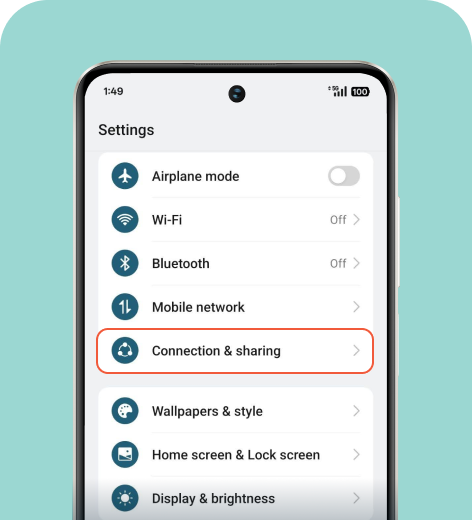
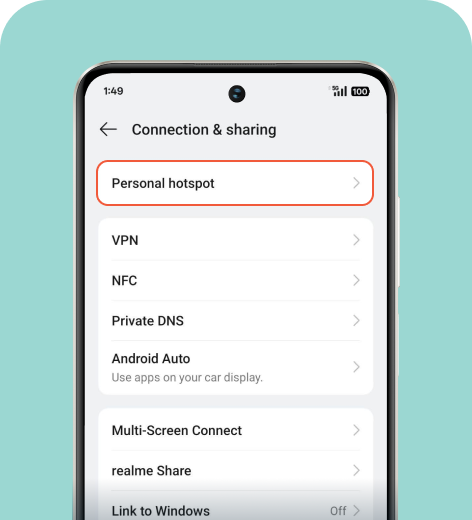
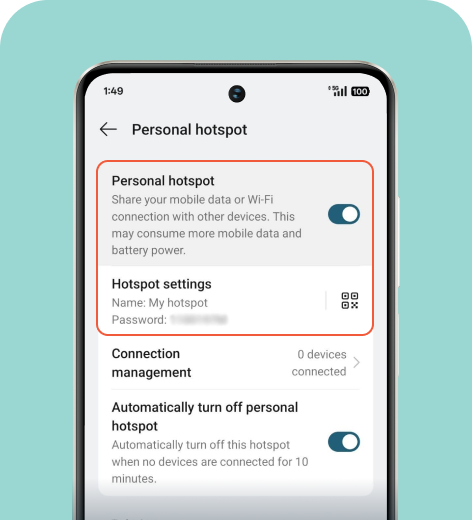
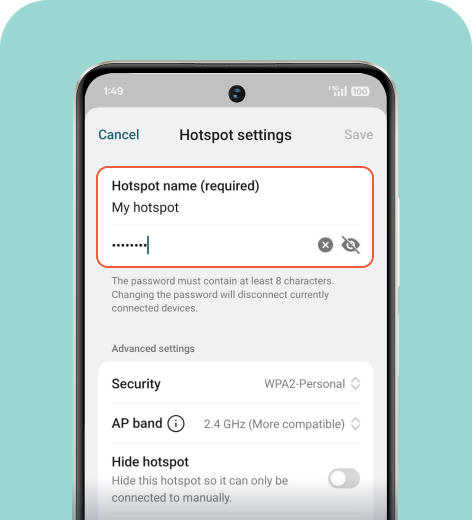
Samsung
- Open Settings > Connections > Mobile Hotspot and Tethering. Make sure to turn on mobile data in order to access hotspot settings.
- Select Mobile hotspot and toggle it on.
- Tap Configure to set or change the network name and password.
- Connect other devices to the mobile hotspot using your unique network name (SSID) and password.
Pixel
- Open Settings > Network & internet > Hotspot & tethering. Mobile data must be on and Battery saver mode needs to be off.
- Toggle the switch next to Wi-Fi hotspot to the on position.
- Select Wi-Fi hotspot to adjust settings like the hotspot name and password.
- Connect other devices to the Wi-Fi hotspot using your unique hotspot name (SSID) and password.
Xiaomi
- Open Settings > Portable Wi-Fi hotspot.
- Select Set up portable Wi-Fi hotspot to change the hotspot name and set a password.
- Toggle on Portable Wi-Fi hotspot to activate it.
- Connect other devices to the Wi-Fi hotspot using your unique hotspot name (SSID) and password.
Quick method
This quick method is ideal for everyday hotspot access, after you’ve configured hotspot settings for optimal use.
- Open Quick Settings. Swipe down from the top of your screen to open the Quick Settings panel.
- Find the hotspot icon. Look for the hotspot icon. If you don’t see it, tap the three dots or the pencil icon in Quick Settings and add Hotspot to your shortcuts.
- Tap the icon to enable hotspot. That's it! The hotspot will turn on instantly.
How to manage an Android hotspot
Android makes it easy to monitor who’s connected and track usage. Below, we’ll walk you through some best practices for using your Android hotspot.
Monitor the devices connected to your Android hotspot
Keeping an eye on connected devices helps you avoid unauthorized usage and manage your data more efficiently. Follow these steps:
- Go to Settings > Connections > Mobile Hotspot and Tethering.
- Tap Wi-Fi hotspot.
- Select Connected devices for a list of devices using your hotspot.
HOT TIP
Android menus vary by device and model type. To find the correct settings, you can type “mobile hotspot” or “Wi-Fi hotspot” in your search bar.
From here, you’ll see a list of all devices currently using your hotspot. If you notice any unknown or unwanted devices, you can disconnect them and update your hotspot password for security.
Track hotspot usage on Android
Monitoring data consumption while sharing your connection is necessary to ensure you don’t accidentally exceed your mobile plan’s limit. Here’s how to check it:
- Go to Settings > Connections > Mobile Hotspot and Tethering.
- Tap Wi-Fi hotspot.
- Select Data usage.
You can now see how much data your hotspot used and set limits or warnings to prevent overages.
Tips for using hotspot on Android
Small adjustments can make a big difference in preserving your mobile data and battery life while keeping connected devices running smoothly. Here are some preventive and ongoing actions you can take to make the most of your hotspot.
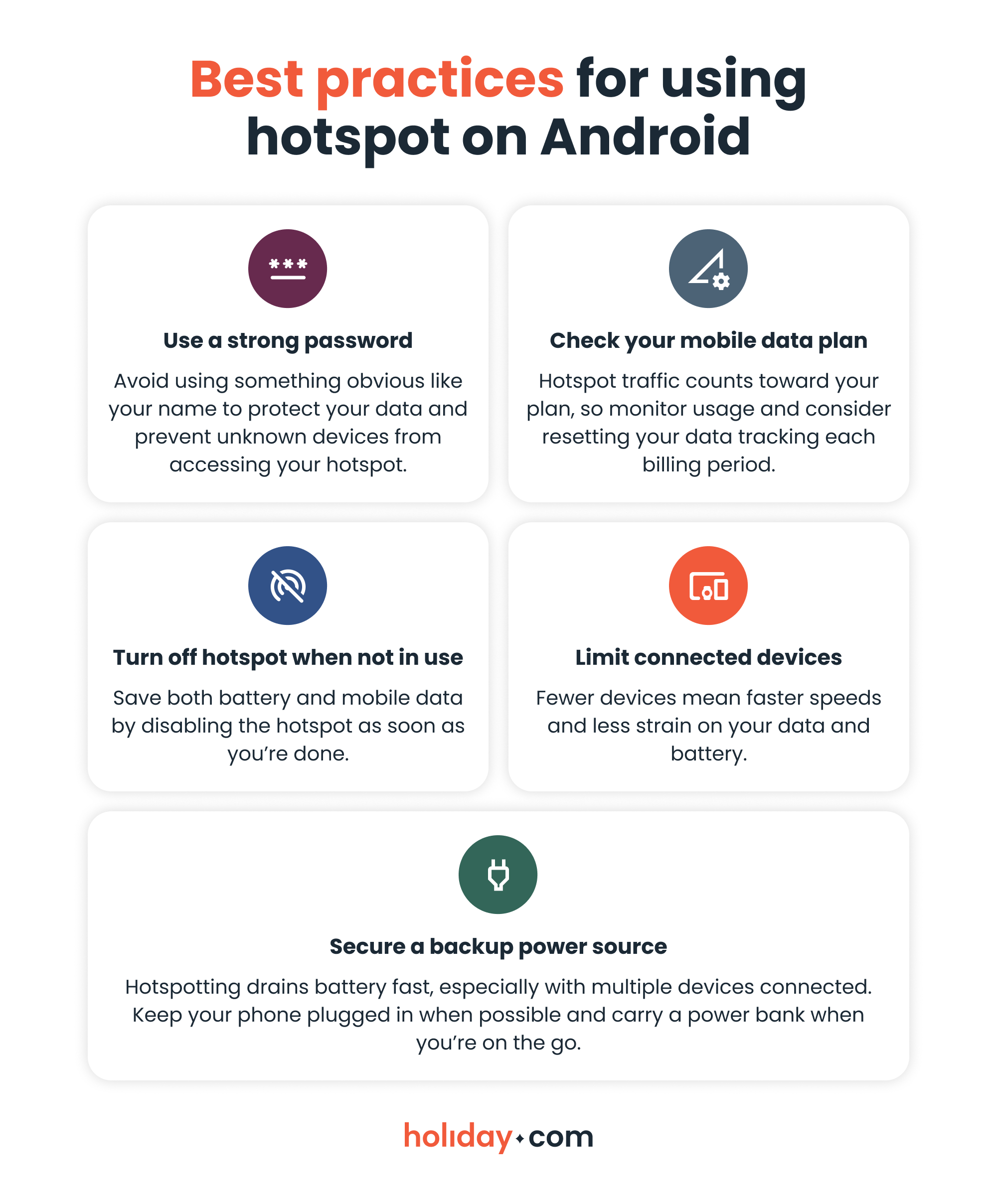
How to reduce data usage on an Android hotspot
Hotspots can use a lot of data, especially when you connect multiple devices or apps run in the background. Make some of the following adjustments to stretch your mobile data further:
Take advantage of Wi-Fi
Modern Android devices offer Wi-Fi sharing, which lets you use your phone as a router on a Wi-Fi connection rather than mobile data. It’s particularly useful for splitting a paid Wi-Fi connection across multiple devices. It’s one of many ways you can use Wi-Fi to conserve data.
Control usage via hotspot settings
After enabling your hotspot, take the following steps to control usage and prevent overages:
- Restrict hotspot access with a password. Change your password occasionally to keep your connection private. To update it, go to your hotspot password settings and enter a new password.
- Set a hotspot data limit. You can set a data cap in your Android hotspot settings to avoid exceeding your plan. To do this, go to your data usage under hotspot settings. From there, set a usage warning for your hotspot. Your phone will notify you when you approach the limit.
Adjust connected device settings to optimize data usage
Check these settings on both your primary and connected devices for best results:
Disable automatic app updates. Turn off auto-updates on connected devices to prevent large downloads from using your hotspot data.
Go to Google Play Store > Profile icon > Settings > Network preferences > Auto-update apps and select Don’t auto-update apps or Over Wi-Fi only. On laptops or other devices, pause system and app updates until you’re connected to Wi-Fi.
Turn off cloud backups and sync. Pause backups and syncing of files, photos, and apps while your hotspot is active to conserve data.
Go to Settings > Passwords & accounts and turn off Auto-sync data. If you use services like Google Photos or Google Drive, open the app and disable Backup & sync until you reconnect to Wi-Fi.
Close background apps using data. Make sure apps running in the background aren’t consuming your data without reason.
Go to Settings > Apps > See all apps or App management. Select an app and tap Force stop or Background restriction. On laptops, check Task Manager (Windows) or Activity Monitor (Mac) to quit apps you don’t need.
Lower video streaming quality. Video is one of the most data-hungry formats out there. If you want to keep watching cute cat videos while on hotspot, reduce the video resolution on your phone and connected devices. Even at lower resolutions, you can still maintain a watchable streaming experience while significantly reducing data consumption.
Disable auto-play on social media apps. Stop videos from playing by default on platforms like Instagram and Facebook to save data. You’ll have to disable auto-play on each platform.
Turn off automatic photo or video uploads. Prevent apps like Google Photos or Dropbox from default uploads while using your hotspot. You’ll need to adjust these settings separately for each app.
Troubleshooting guide: What to do if your Android hotspot isn’t working
If your hotspot won’t turn on or other devices can’t connect, a few checks can often solve the issue. The troubleshooting tips below cover the most common Android hotspot problems and how to fix them.
- Connected device shows no internet. If a device connects to your hotspot but can’t access the internet, verify that your phone has an active data connection. Try turning mobile data off and on again or reconnecting the device to the hotspot network.
- Hotspot network not visible. If other devices can’t find your hotspot, make sure your hotspot is on. Disabling and re-enabling Wi-Fi on the connecting device may also help.
- Weak cellular signal. Your hotspot relies on your phone’s mobile network. If your signal is weak or unstable, connected devices may experience slow speeds or no internet access at all. Move closer to a window or an area with stronger signal coverage.
- Hotspot disabled in data saver mode. Some Android devices restrict hotspot usage when you have Data Saver mode enabled. Go to Settings > Connections > Data Saver and turn it off if your hotspot isn’t working.
- Battery saver limiting hotspot functionality. Battery saver settings may disable hotspot features to conserve power. Go to Settings > Battery > Battery Saver and turn it off if the hotspot won’t activate.
- Hotspot automatically turns off. Many Android phones disable hotspots after a period of inactivity. Check your hotspot settings and disable options like Turn off hotspot automatically if you want the connection to stay active longer.
- Device overheating during hotspot use. Running a hotspot for extended periods can heat up your phone, especially if you’re hotspotting multiple devices. If your device becomes too hot, Android may disable the hotspot for the time being. Disconnect some devices or let your phone cool down before reconnecting.
- APN settings misconfigured. Incorrect Access Point Name (APN) settings can prevent mobile data and hotspot connections from working properly.
- Wi-Fi band compatibility issues. Some devices may struggle to connect if your hotspot uses a 5 GHz Wi-Fi band. Switch to the 2.4 GHz band under your hotspot settings. On Samsung, go to Settings > Connections > Hotspot & tethering > Wi-Fi hotspot > AP Band for broader compatibility.
- Firewall or security apps blocking connection. Certain firewall, VPN, or security apps can interfere with hotspot connections. Temporarily disable these apps to see if the connection improves.
- System update required. Outdated software can sometimes cause connectivity problems. Check for updates by going to Settings > System > System update and install any available updates to ensure your hotspot works.
Learn how to use an Android hotspot efficiently
Your Android’s hotspot can be a lifesaver in situations where you need to share mobile data with a laptop or other device. It’s a resource-heavy feature, but our practical tips can help you get the most efficient performance possible.
Besides mobile hotspot best practices, the Wi-Fi sharing feature is another way Android devices let you conserve your data plan. As long as you’re aware of your phone’s capabilities and practice moderation when using a hotspot, your Android can be a powerful tool for accessing the internet on the go.
FAQ
-
Is there a downside to using your phone as a hotspot?

Yes. Using your phone as a hotspot can drain your battery and use a lot of mobile data, especially if you have multiple devices connected or apps run in the background. Speeds may also be slower than a direct connection.
-
How can I connect a hotspot to another Android phone?
Turn on the hotspot on your Android phone by going to Settings > Connections or Network & Internet > Personal hotspot, and toggle Personal hotspot on. Look up the available Wi-Fi networks on the device you wish to connect and select the hotspot network. If you’re using hotspots often, there’s a faster way to enable the function through your Quick Settings panel.
-
How do I set a password for a hotspot on Android?
For Samsung, you can go to Settings > Connections > Personal hotspot > Hotspot password. For other Android phones, you can search for “hotspot” in your settings to find this menu. Enter a new password and tap Save. This helps restrict access and prevents unknown devices from using your hotspot. It’s best to change your password often to prevent other devices connecting to your hotspot with unauthorized access.
-
Can you use your phone as a hotspot while connected to Wi-Fi?
Yes. Many Android phones support Wi-Fi sharing, which lets your phone share an existing Wi-Fi connection with other devices. This feature is useful for splitting a paid network, such as hotel or airplane Wi-Fi, across multiple devices.
About our author

You might also be interested in...
-
 Tech
Tech120+ must have apps while abroad
Smartphones, and the digital technologies that support them, have transformed travel planning from frantic guidebook hunts to slick app-powered adventures. But sifting through thousands of options can...
 Lucca
Lucca 07.02.2026
 -
 Tech
TechHow to stop apps from running in the background
Your phone handles multiple processes at once, so apps can keep running even when you’re not using them. This hidden activity drains your battery and quietly consumes mobile data. The good news is t...
Ana Marković
05.19.2026 -
 Tech
TechWhat is a mobile hotspot? How it works and when to use it
A mobile hotspot can make life easier if your internet goes down while you’re working on a deadline or if the café you picked for a conference call doesn’t have Wi-Fi. If you overuse it, however,...
Ivana Shteriova
04.24.2026 -
 Tech
TechWhat does Low Data Mode mean and when to use it
Managing mobile data isn’t always straightforward. Background app updates and automatic downloads can quietly use data without you realizing it, which adds up if you’re on a limited plan or relyin...
Chené Murphy
04.08.2026