


An eSIM hotspot functions exactly like a traditional mobile hotspot, but without the hassle of a physical card. It uses your device’s embedded chip to connect to a mobile network and broadcasts that signal as a private Wi-Fi network for other devices to join.
Traveling often requires more than one connected phone. You might need to get your laptop online for an urgent video call, or perhaps your family needs reliable internet for their tablets during a long train ride. Relying on unsecure public Wi-Fi puts your data at risk, while buying separate physical SIM cards for every device is expensive and inefficient.
The solution is likely already in your pocket. By toggling a single setting, your smartphone becomes a secure travel router, allowing you to share one data plan across multiple devices instantly. This guide covers how to set up tethering on iPhone and Android, how to manage data consumption, and what to expect in terms of speed and battery life.
What are the benefits of using an eSIM hotspot?
Using your phone as a portable router offers distinct advantages over relying on external networks or physical SIM cards:
- Enhanced security. Public Wi-Fi networks in airports and cafes are often unsecured and vulnerable to cyberattacks. Broadcasting your own private signal ensures you control who connects to your network.
- Cost efficiency. Purchasing individual SIM cards for your laptop, tablet, and travel partners can add up quickly. Tethering allows you to purchase a single, robust data plan and share it across all your devices, often saving you money compared to multiple subscriptions.
- Hardware safety. Because the eSIM is embedded, you avoid the risk of losing or damaging your primary physical SIM card while swapping it out in transit.
Best of all, activating this feature takes a few seconds once your data plan is live.
How to enable hotspot tethering on your device
Before you begin, ensure you have installed your eSIM and it’s active on your device. Once you have a data connection, follow these steps to start sharing it.
Setting up a hotspot on iPhone
The setup process is straightforward on iPhones. The hardest part is simply deciding what your password will be.
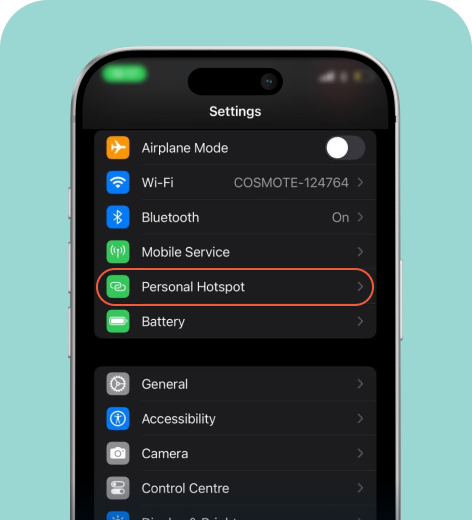
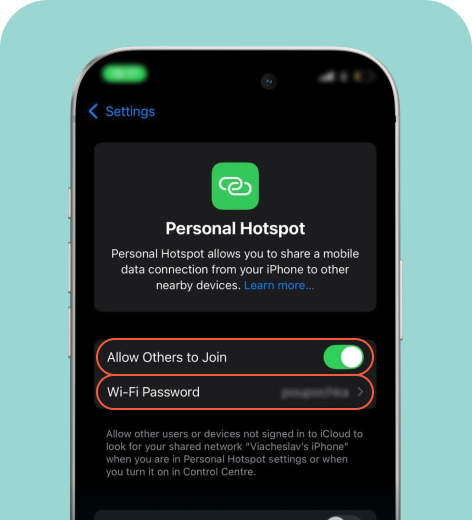
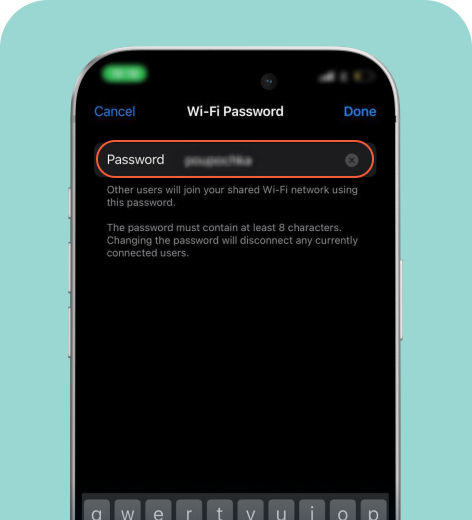
Other devices can now connect by going to Settings > Wi-Fi, selecting your device’s name (e.g., Ana’s iPhone), and entering the password you set.
Setting up a hotspot on Android
The steps vary slightly depending on the specific model.
On Samsung
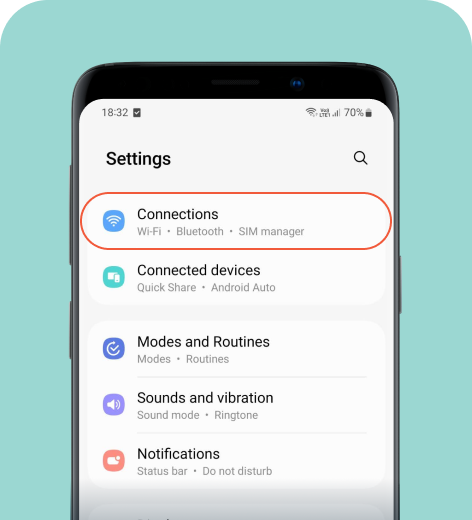
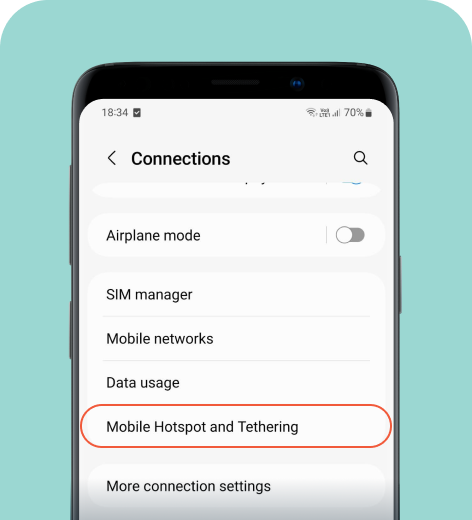
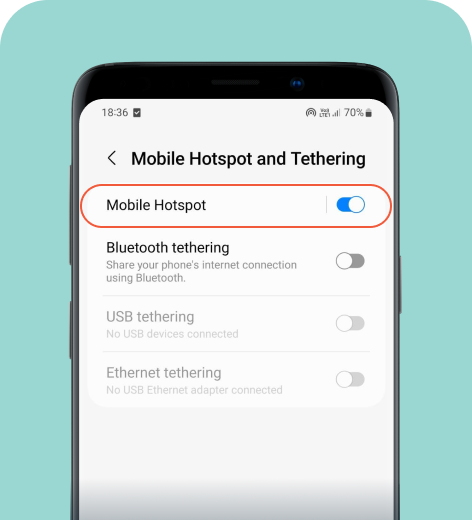
Once you’ve completed these steps, set a password and use it to connect other devices.
On Google Pixel
- Go to Settings > Network & internet.
- Tap Hotspot & Tethering.
- Turn on Wi-Fi hotspot.
Other than Wi-Fi, you can also connect other devices to a hotspot via Bluetooth or USB.
On Xiaomi
- Go to Settings > Portable hotspot.
- Toggle Portable hotspot on.
- Go to Set up portable hotspot to configure your network name and password.
How to manage performance and data usage
Sharing your connection is convenient, but it places extra demands on your device. Here’s how to optimize your experience:
- Monitor your battery. Broadcasting a Wi-Fi signal consumes significantly more power than standard use. To avoid a dead phone mid-day, keep your device plugged into a power bank while tethering or turn off the hotspot immediately after use.
- Watch your data limits. Laptops often treat Wi-Fi connections as unlimited, meaning they may attempt large background downloads or software updates. Monitor your data usage in your phone’s settings to prevent your plan from draining unexpectedly.
- Expect speed fluctuations. Your connection speed depends on your cellular signal strength and the number of devices you connect. If speeds slow down, try disconnecting non-essential devices to free up bandwidth.
By keeping an eye on these factors, you can turn your phone into a reliable internet hub without any unwanted surprises.
Troubleshooting common eSIM hotspot issues
If you can’t connect or experience slow speeds, try these quick fixes to get back online:
| Issue | Quick Fixes |
| Hotspot connects but has no internet |
|
| Hotspot option is missing or grayed out |
|
| Other devices can’t connect to the hotspot |
|
| Data drains faster than expected |
|
| Hotspot works at home but not abroad |
|
Stay connected anywhere with an eSIM hotspot
Turning your phone into an eSIM hotspot is one of the most convenient ways to keep all your devices online while traveling. It bridges the gap between your mobile data plan and the devices you rely on, saving you the cost and hassle of sourcing multiple physical SIM cards.
While tethering requires you to monitor your battery life and data limit, you really can’t match the benefits of having a private, secure network on demand. With the right setup, you can ensure you are never out of reach, no matter where your trip takes you.
FAQ
-
Can an eSIM be used for a hotspot?

Yes. An eSIM works just like a physical SIM for tethering, provided your carrier and data plan support it. While the technology is capable, some specific travel or prepaid plans may disable this feature to manage network traffic.
-
How do I enable an eSIM hotspot?
You can enable an eSIM hotspot through your settings menu under Personal Hotspot (iOS) or Mobile Hotspot (Android).
-
How many devices can I connect to an eSIM hotspot?
Most modern smartphones allow between 5 and 10 simultaneous connections. However, connecting multiple devices splits your available bandwidth, which can significantly slow down internet speeds for everyone connected.
-
Why is my eSIM hotspot not working?
The most common reasons include data plan restrictions, weak cellular signal, or outdated software. If a restart doesn’t resolve the issue, check to see if your specific eSIM plan blocks the ability to tether your phone.
-
Can carriers limit eSIM hotspot data?
Yes. Some carriers enforce a specific “hotspot cap” that is lower than your total data allowance, or they may throttle (slow down) your connection speed once you have shared a certain amount of data.
-
Is it safe to use an eSIM hotspot abroad?
Yes, eSIM hotspots are generally much safer than using public Wi-Fi because cellular networks encrypt your connection by default. Always set a strong, unique password to prevent strangers from joining your network.
About our author

You might also be interested in...
-
 eSIM
eSIMHow to turn off an eSIM: Quick guide and tips in 2026
Turning off your eSIM can be helpful in many situations. You may want to disable a travel data plan, switch to another SIM, or avoid roaming charges. The process is quick and you can do it from your p...
 Ana Marković
 06.16.2026
 -
 eSIM
eSIMWhat is an ICCID number and why does it matter?
Knowing how to find your integrated circuit card identifier (ICCID) number makes it easier to manage devices that use SIM cards and eSIMs. When things are going smoothly, you hardly have to think abou...
Sarah Kirton
06.16.2026 -
 eSIM
eSIMeSIM vs. data roaming: Which is better for international travel?
Staying connected while traveling is easier than ever, but the way you access mobile data can make a big difference in your experience and costs. Two popular options are purchasing a travel eSIM or re...
Dawn Prevete
06.09.2026 -
 eSIM
eSIMeSIM vs physical SIM: Pros, cons, and which one is right for you?
An eSIM (embedded SIM) is the digital equivalent of a physical SIM card built into your device. It allows you to activate and manage cellular plans entirely through software, meaning there’s nothing...
Ivana Shteriova
06.08.2026 -
 eSIM
eSIMHow to delete data usage history in 2026: A step-by-step guide
You can erase the data usage counters on your phone, but you can’t permanently erase your carrier’s system-level logs. Deleting your local statistics so the counter returns to zero takes only a fe...
Ana Marković
06.08.2026 -
 eSIM
eSIMDoes an eSIM drain your battery? Fact versus fiction
While eSIMs use the same hardware as physical SIM cards and consume virtually the same power, there are times when you might notice your device’s battery draining faster than usual. Most often, itâ€...
Sarah Kirton
06.08.2026