



You can erase the data usage counters on your phone, but you can’t permanently erase your carrier’s system-level logs.
Deleting your local statistics so the counter returns to zero takes only a few taps. You may want to do this if you’re starting a new billing cycle or you’re preparing for a trip and need a fresh start before traveling.
If you feel like your phone logged too much data or the numbers look inaccurate, resetting your stats is easy and safe. We’ll show you exactly how to delete data usage history on Android and iPhone and what really happens when you do it.
What’s the easiest way to reset data usage?
Whether you have an Android or iPhone device, it should only take a few seconds.
HOT TIP
If you only want to reset your data counter, avoid using the Reset Network Settings (iPhone) or Reset network and Bluetooth (Android) options. While these will reset your data usage stats, they’ll also wipe out all your saved Wi-Fi passwords, Bluetooth pairings, and VPN configurations.
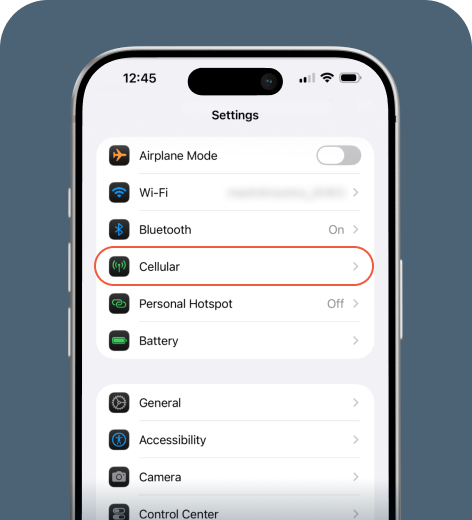
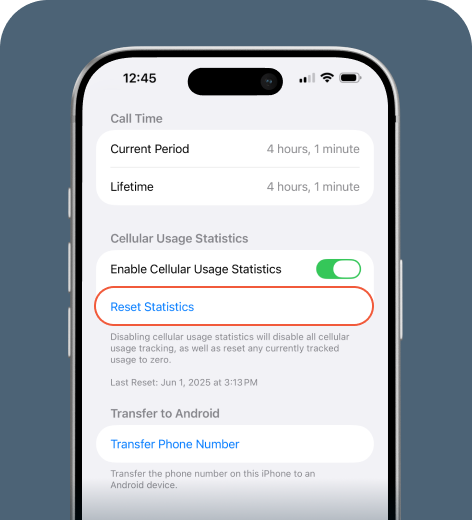
On iPhone
You can reset your data usage history on iPhone devices in a few steps.
On Android
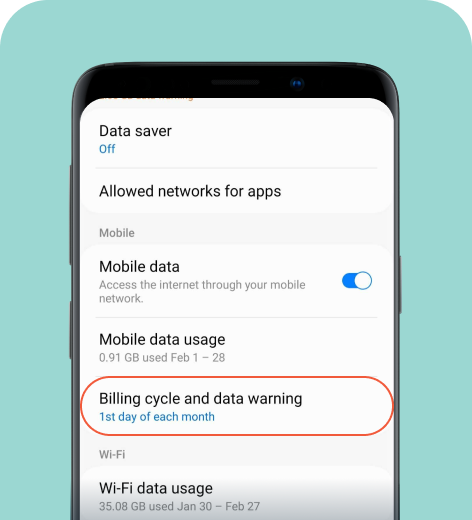
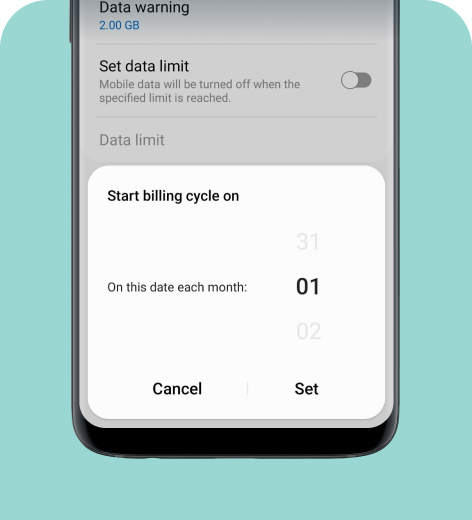
You can set the counter to start calculating data usage from today’s date. Your data statistics will reset and you can begin tracking your usage from this date.
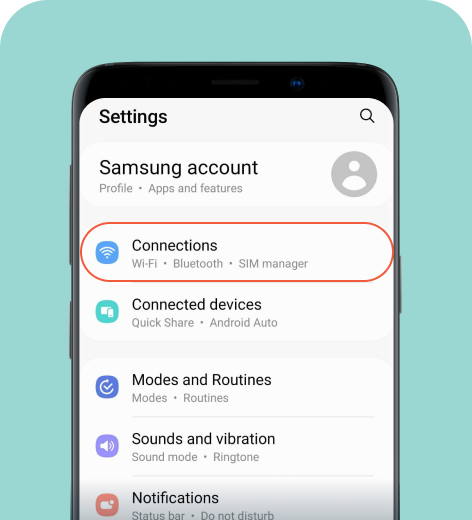
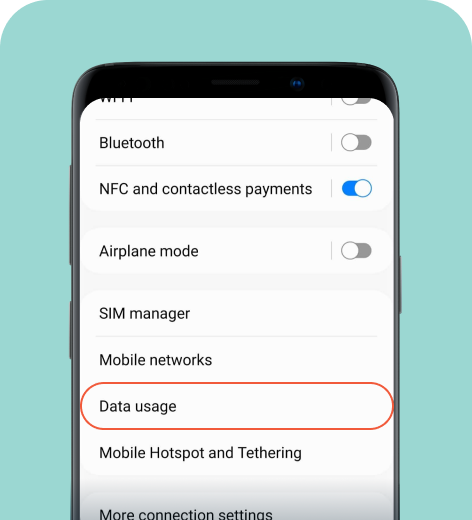
Samsung
Here’s how to restart your data tracking.
Pixel
- Go to Settings > Network & internet > SIMs.
- If you have more than one SIM active, select your SIM.
- Tap Data warning & limit.
- Set or adjust the billing cycle date.
Xiaomi
- Go to Settings > SIM cards & mobile networks.
- Select your SIM.
- Tap Data usage.
- Look for Reset statistics or a similar option.
You can also set the data usage limit on your phone.
- Go to Security > Data usage.
- Tap Agree.
- Select Set data usage limit.
- Under the Monthly data limit box, input your value.
Note that the exact menu names may vary depending on your phone model and Android version. You can always type “Data usage” into your settings search bar to find this option.
HOT TIP
On Android, you can delete an app’s data usage history by navigating to Settings > Apps > Storage > Clear data. You'll free up storage space but we don’t recommend doing this because it will also delete all user data related to the app (including login information and in-app configurations).
What happens after you delete your data usage history?
When you reset your data usage statistics:
- Your counter goes back to zero
- A new billing cycle starts tracking immediately
- Apps start logging fresh data
It’s important to remember that this only affects your local tracking. It won’t impact your internet speeds, and your carrier will still be able to see how much data you’ve used.
When to clear your data usage history
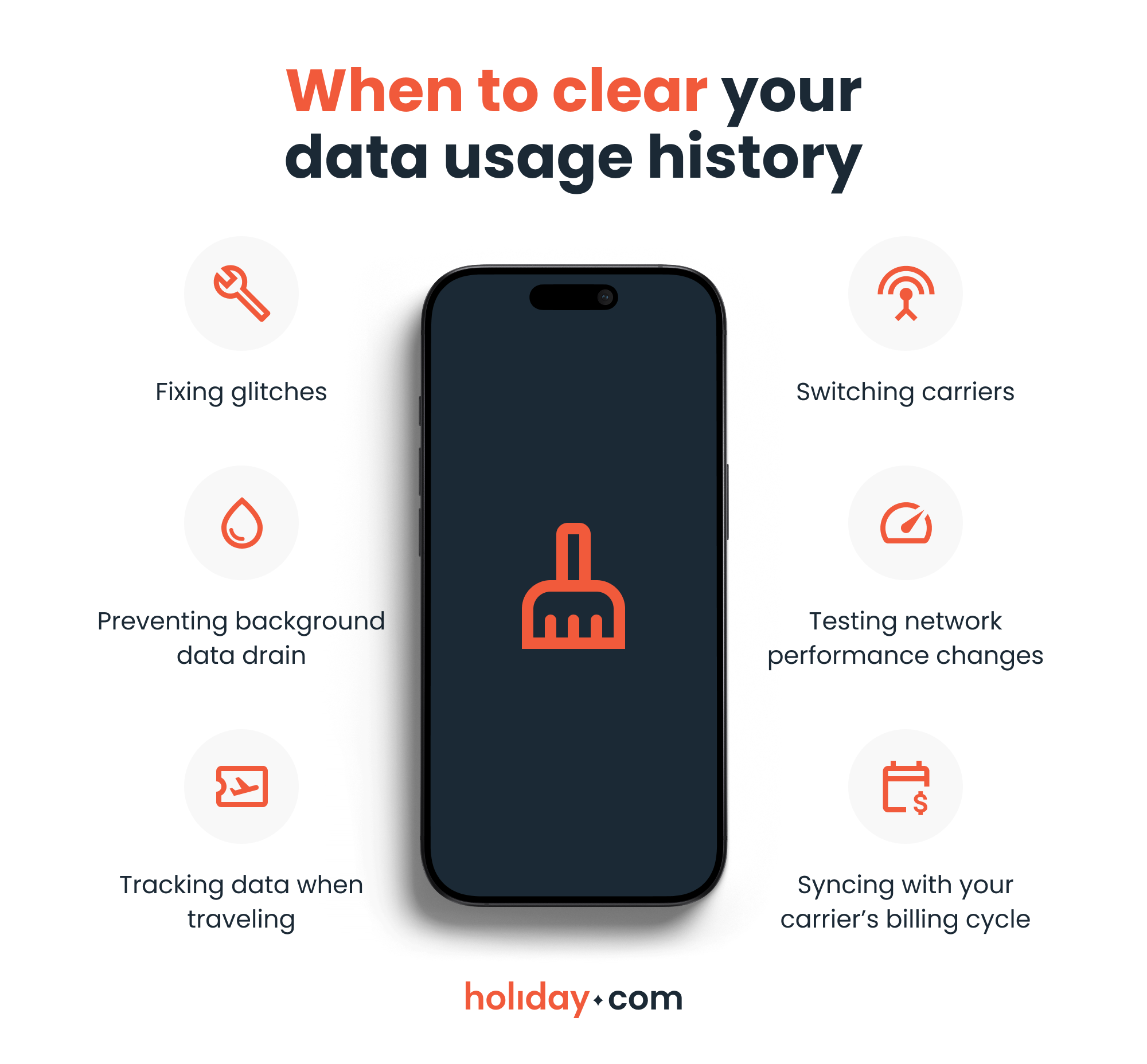
You might want to reset your mobile stats to fix inaccurate data readings or test new network settings. Here are the most common scenarios.
Fixing glitches
Sometimes mobile data usage statistics seem high. This may happen after a system update, a SIM card change, a network switch, or even a software glitch. In these cases, the counter may not reflect actual data usage.
Clearing your history gives you a fresh start. If the numbers spike again, you’ll know you have an ongoing issue, such as a background app draining your data.
Preventing background data drain
If your battery drains faster than usual, background apps may be consuming more than expected. By resetting your stats, you can see which app is using more data after the reset. For instance, if a social media app uses several gigabytes in a short time, you can be sure it’s the main culprit.
Tracking data when traveling
You may install a travel eSIM and start a new data plan when traveling. If your phone supports dual SIM functionality, it can be difficult to distinguish between your home carrier’s usage and your travel data plan. Clearing your history before activating a travel eSIM prevents confusion and helps you track exactly how much data you use for apps like maps, ride-sharing apps, translation tools, and social media.
To skip data tracking altogether and focus on your trip, use a holiday.com eSIM. We offer unlimited data for your chosen number of days, so you can stay connected without worrying about limits or roaming charges.
Switching carriers
When switching mobile providers, you may want to delete data usage history to avoid confusion between your old and new plans. A new carrier may offer a different data limit or billing cycle. Restarting your counter prevents misunderstandings about how much data you have left.
Testing network performance
A reset might also come in handy if you just enabled 5G, switched to LTE-only mode, or turned on a data saver feature. Starting with a fresh counter lets you determine if you’re spending more or less data under a new configuration.
Syncing with your carrier’s billing cycle
Carriers refresh data usage records, but your phone might not sync with their schedule. Clearing your history on the first day of your cycle gives you a clean starting point to help avoid overage charges.
How to check data usage
Resetting your stats is only part of the solution. Checking and managing your data is equally important. On iPhone, you can monitor data use by navigating to Settings > Cellular (or Mobile Service).
You can check your data usage on Android by following the same steps for deleting your data usage history. Go to Settings > Connections > Data usage to see how much data you’ve consumed for an app.
How can you reduce data usage?
Here’s what you can do to prevent drastic data usage spikes:
- Disable background data for specific apps. By disabling background data for large apps, you stop them from syncing over mobile networks, helping reduce unexpected data drain.
- Enable data saver. Both Android and iPhone feature a data saving mode that restricts apps from downloading large amounts of data. Type “data saver” (on iPhone) or “data saving” (on Android) from the settings menu to find this option quickly.
- Use Wi-Fi whenever possible. Using a trusted Wi-Fi connection to stream videos, back up photos, and get app updates helps you avoid hitting your plan’s limit too early in the billing cycle.
- Disable auto-play videos. Disabling this feature in streaming apps ensures that videos only load when you intentionally press play.
- Download maps and media offline. By downloading maps, playlists, podcasts, or shows before leaving home, you avoid streaming them over mobile data later.
- Limit hotspot usage. Laptops and tablets often use more bandwidth than mobile apps, so being mindful of hotspot sessions and disconnecting when not needed can help conserve data.
Resetting your data offers you a clean slate
When you delete your data usage history, you're doing a bit of digital housekeeping. While your carrier still keeps the official tally, wiping your local stats gives you a fresh start to test a new network or identify underlying usage issues.
Enable data-saving mode and monitor apps after the reset to spot usage spikes early. With the right configurations and awareness, you can stay in control of your mobile data and avoid overage fees.
FAQ
-
Can anyone see your history after you delete it?

Deleting history removes it from your device, but it may still exist in backups, synced accounts, or carrier records. Internet providers and some online services may retain their own logs. Deleting locally doesn’t guarantee complete erasure everywhere.
-
Does resetting data usage counters permanently delete data?
No. Resetting data usage counters clears the numbers and restarts tracking from zero. It doesn’t erase system logs or carrier records. A factory reset is the only option that wipes the device’s data and settings. However, even a factory reset doesn’t remove your mobile carrier’s usage records.
-
Can clearing data free up storage?
Yes, clearing app cache or stored data can free up space on your device. Temporary files, images, and background data can build up over time. Removing them may improve performance, but note that this option will also reset user preferences and in-app settings. Resetting data usage statistics alone doesn’t free storage.
-
What is the difference between data usage history and system logs?
Data usage history is the counter in your phone’s settings that tracks how much mobile data you’ve used. System logs are background records that the operating system creates for performance monitoring. You can’t easily access or delete these logs.
-
How do I delete my internet browsing history?
Internet browsing history is separate from mobile data usage. To delete it on Chrome (Android), access the three-dot options menu, select History, then tap Clear browsing data. On Safari (iPhone), open Settings, select Safari, then tap Clear History and Website Data. This removes saved websites and search records from your device. It doesn’t erase records stored by your internet provider.
About our author

You might also be interested in...
-
 eSIM
eSIMHow to turn off an eSIM: Quick guide and tips in 2026
Turning off your eSIM can be helpful in many situations. You may want to disable a travel data plan, switch to another SIM, or avoid roaming charges. The process is quick and you can do it from your p...
 Ana Marković
 06.16.2026
 -
 eSIM
eSIMWhat is an ICCID number and why does it matter?
Knowing how to find your integrated circuit card identifier (ICCID) number makes it easier to manage devices that use SIM cards and eSIMs. When things are going smoothly, you hardly have to think abou...
Sarah Kirton
06.16.2026 -
 eSIM
eSIMeSIM vs. data roaming: Which is better for international travel?
Staying connected while traveling is easier than ever, but the way you access mobile data can make a big difference in your experience and costs. Two popular options are purchasing a travel eSIM or re...
Dawn Prevete
06.09.2026 -
 eSIM
eSIMeSIM vs physical SIM: Pros, cons, and which one is right for you?
An eSIM (embedded SIM) is the digital equivalent of a physical SIM card built into your device. It allows you to activate and manage cellular plans entirely through software, meaning there’s nothing...
Ivana Shteriova
06.08.2026 -
 eSIM
eSIMDoes an eSIM drain your battery? Fact versus fiction
While eSIMs use the same hardware as physical SIM cards and consume virtually the same power, there are times when you might notice your device’s battery draining faster than usual. Most often, itâ€...
Sarah Kirton
06.08.2026 -
 eSIM
eSIM11 benefits of eSIMs every traveler should know
You shouldn’t have to put up with inconveniences or pay a small fortune to stay connected while traveling. Yet for years, travelers have had to deal with roaming charges, unreliable Wi-Fi, and the h...
Ana Marković
06.01.2026