


There’s nothing more frustrating than seeing full signal bars on your phone while your internet refuses to load. You might be able to make calls or send texts, but your browser, maps, and apps remain completely dead. This is a classic sign of a configuration error, often happening right after you switch SIM cards or traveling to another country.
The culprit is likely your Access Point Name (APN). This setting acts as the digital gateway between your device and the mobile network. If the gateway is blocked or the address is slightly wrong, your data flow stops completely.
The good news is that your phone isn't broken and you likely don't need to call technical support. We’ll look at exactly how this setting works and walk you through a simple 30-second reset that gets most devices back online instantly.
Why you need an APN
The Access Point Name (APN) is the label your phone uses to request access to a mobile network so it can reach the public internet. Every mobile network operator provides one. Your device reads it, follows it, and establishes a mobile data connection.
Simply put:
- Your phone is the car
- The network is the highway
- The APN is the on-ramp
Without the ramp, the car never enters the highway. With the wrong ramp, it ends up on the wrong road or gets blocked at the entry.
Inside the device, the APN supplies the necessary gateway, IP address, and security rules. When the APN is correct, data flows. When it’s wrong, the phone has signal bars but no internet.
Public vs. private APN
A public APN connects devices to the open internet. This powers your browsing, maps, and social media.
A private APN connects devices to a closed corporate network (used for payment terminals, healthcare systems, or IoT devices). These are slower and more restrictive.
For personal travel, you’ll rely on a public APN to connect to local networks. You’ll still have secure and open internet access for maps, apps, and browsing without the restrictions of a private corporate network.
When to change APN settings
APN settings tell your phone how to connect to a carrier’s data network. If these settings are missing or incorrect, roaming data may not work at all. Your phone configures these settings during normal use.
You only need to edit them in three specific situations:
- Buying a local SIM card abroad. When you insert a new SIM card, your phone may try to use the network rules from your previous home carrier. If you see signal bars but cannot connect to the internet, you likely need to update the APN settings to match the new local operator.
- Installing a travel eSIM. Most modern travel plans configure the APN for you during setup. However, temporary network glitches can sometimes prevent these settings from saving correctly. If automatic setup fails, eSIM providers like holiday.com list the specific APN details in their app for easy setup.
- You have bars but no 4G/5G icon. This is the classic sign of a routing error. Your phone connects to the towers (voice/SMS may work), but something is blocking the data "on-ramp." Fixing the APN restores the internet path.
Depending on your network provider, you may not have direct access to adjust your APN settings and will need to contact your carrier.
The APN settings that matter
The APN menu contains many fields, but only these are relevant to your connection. Leave the others at their default values:
- APN. This is the address your phone uses to reach the internet. Note that it’s case-sensitive. If your provider specifies “globaldata,” entering “GlobalData” will break the connection.
- Username and password. Modern eSIMs and networks rarely use these. Unless your provider explicitly gives you login credentials, leave these fields blank.
HOT TIP
Don’t touch the Mobile Country Code (MCC) and Mobile Network Code (MNC) fields. These identify the network itself. Changing them can break your registration and cause the “No Service” error.
How to find APN settings on iPhone
On some iPhones, the APN screen displays all key fields inside one page: the mobile data APN, the MMS APN, and the personal hotspot APN. If you don’t see them, it’s likely that your carrier locks or auto-configures them for you.
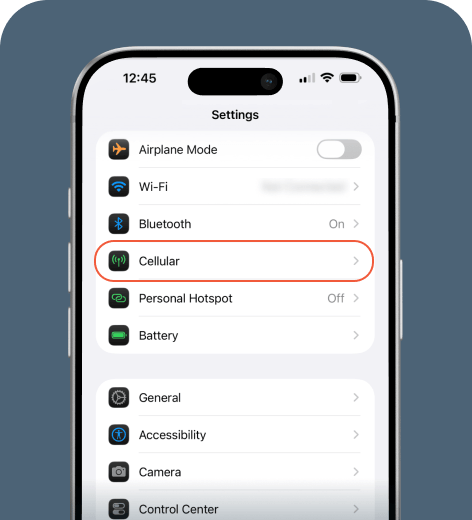
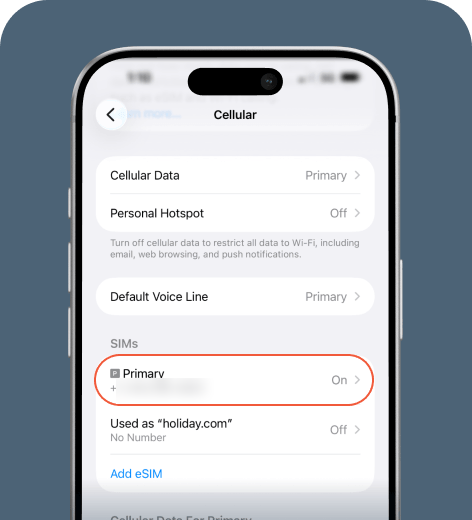
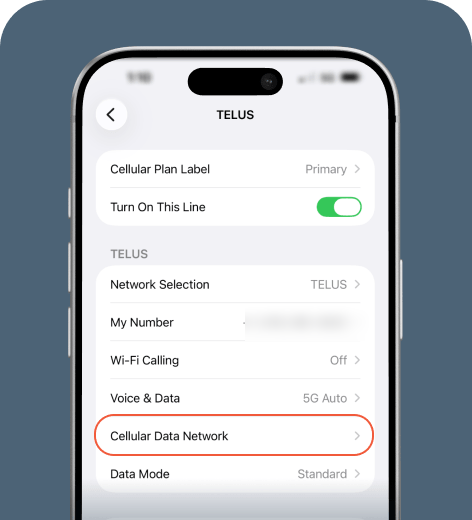
You can then edit any APN settings as instructed by your provider.
How to find APN settings on Android
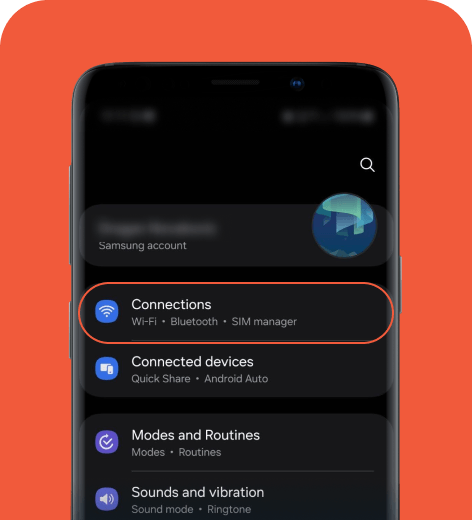
This is where you can find the APN menu on Android and iOS.
On Samsung
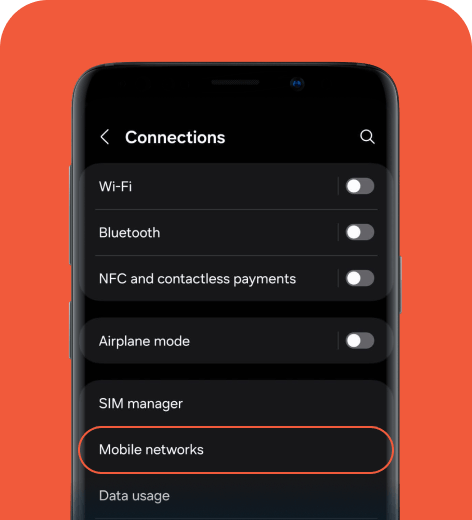
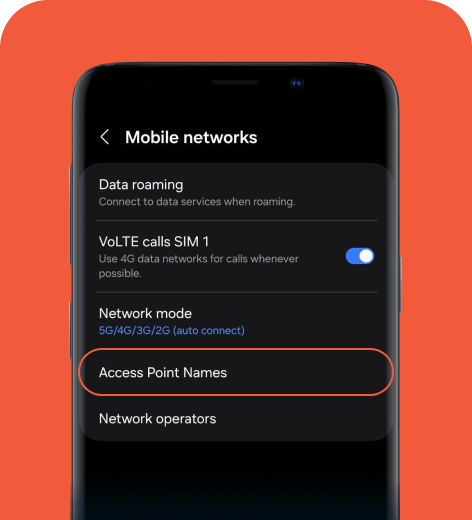
On Pixel
- Go to Settings > Network & internet > SIMs (or Mobile Network on older phones)
- Scroll down to Access Point Names.
- Tap the more options menu (three-dot icon) to see settings or select the + icon to add a new APN.
On Xiaomi
- Navigate to Settings > SIM cards & mobile networks.
- Select your SIM card.
- Choose Access Point Names.
- To add a new APN, tap New APN or the + icon.
Why is my data still not working?
If updating the APN doesn't fix the issue, check these common culprits:
| Issue | Probable cause | The fix |
| Signal bars show but there’s no 4G/5G icon | The routing rule is broken, often due to a typo. | Check the APN value. One wrong character will block the connection. |
| Internet works but media messages fail | MMS routing failure. The MMSC field is likely empty or incorrect. | Verify the MMS APN or MMSC settings match your carrier's instructions exactly. |
| I’m roaming and nothing works | Your phone is blocking data usage. | Go to Settings and toggle Data Roaming on. |
| Data works on one SIM but not the other | Dual-SIM priority issue. The phone is trying to pull data from the wrong line. | Go to SIM Manager or Settings > Cellular and set your desired SIM as the primary data line. |
| It worked yesterday but broke after an update | System updates can sometimes overwrite custom APN settings. | Reset Network Settings, re-enter the APN details, and restart your phone. |
Regardless of the problem, the root cause is usually the same. Your phone is connected to the cellular network, but the routing rule is missing or blocked. Correcting the APN settings can restore internet access.
Your APN is more important thank you think
Your APN is the bridge between your phone and the network. When you can’t access your data, the fix is usually simple. Find the Reset Network Settings option to clear glitches, or double-check the APN name for typos. Often, toggling airplane mode off and on or restarting your phone is all you need to get back online.
FAQ
-
Why are my APN settings greyed out?

Carriers often lock APN settings to prevent accidental changes that could disconnect your service. If you can’t edit these settings, your device has likely already received the correct automatic configuration.
-
Will resetting my network settings delete my photos or apps?
No. This troubleshooting step only reverts mobile data, Wi-Fi, and Bluetooth configurations to their factory defaults. It doesn’t delete personal media, contacts, or apps. You will, however, need to re-enter your Wi-Fi passwords after the reset.
-
Do I need to set an APN manually for an eSIM?
You’ll rarely need to do this. Modern eSIMs, including holiday.com, set the APN configuration during setup. You only need to access this setting if you have full signal bars but no internet access.
-
What happens if my APN settings are wrong?
If your APN settings are wrong, mobile data will stop working altogether. You can still make regular voice calls and send SMS messages, but apps, maps, and websites will not load until you fix the APN issue.
About our author

You might also be interested in...
-
 Glossary
What is data roaming and how does it work?
You step off the plane in a new country, open Google Maps or check your messages, and everything works like normal. What you may not see is how quickly those small actions can add up to big expenses w...
 Ana Marković
 06.09.2026
 -
 Glossary
What is a nano SIM card? Features and compatibility
If you’re buying a new phone or getting a new SIM card for any reason, using the correct size is vital for proper functionality. SIM cards come in multiple sizes like standard and micro, but these c...
Ivana Shteriova
06.08.2026 -
 Glossary
eKYC verification: What is it, when you need it, and how to do it
Seeing “Verification Failed” on your phone screen can be a major disruption to your plans. If you have to complete a facial scan to activate an eSIM or access international funds, an unsuccessful ...
Sarah Kirton
06.04.2026 -
 Glossary
What is a SIM card? How SIM technology works
A subscriber identity module (SIM) card is inside almost every mobile phone, yet most people never think about what it does or what it contains. Simply put, it keeps your device connected to a mobile ...
Jelena Relić
06.04.2026 -
 Glossary
What is GSM? Everything travelers need to know
If you’re a frequent international traveler, you’ve probably encountered GSM before. Whether you knew it, GSM plays an important role in keeping you connected when you travel abroad. But what exac...
Dawn Prevete
06.01.2026 -
 Glossary
What is mobile internet? A traveler's guide to staying connected
When you check Google Maps in a new city, send WhatsApp messages, or scroll through Instagram Reels on the go, you’re using mobile internet. Mobile internet (also called mobile or cellular data) con...
Sarah Kirton
05.13.2026