



You step off the plane in a new country, open Google Maps or check your messages, and everything works like normal. What you may not see is how quickly those small actions can add up to big expenses when data roaming kicks in.
Data roaming allows your phone to stay online when you’re traveling abroad. However, the costs, rules, and limitations associated with it are rarely clear and upfront. For many travelers, it can feel like you’re in the dark about how much you’re spending until the bill arrives.
In this guide, we’ll cover the technology behind data roaming, how it works, how much it really costs, and the smarter alternatives travelers use to stay connected without blowing their budget.
The data roaming process
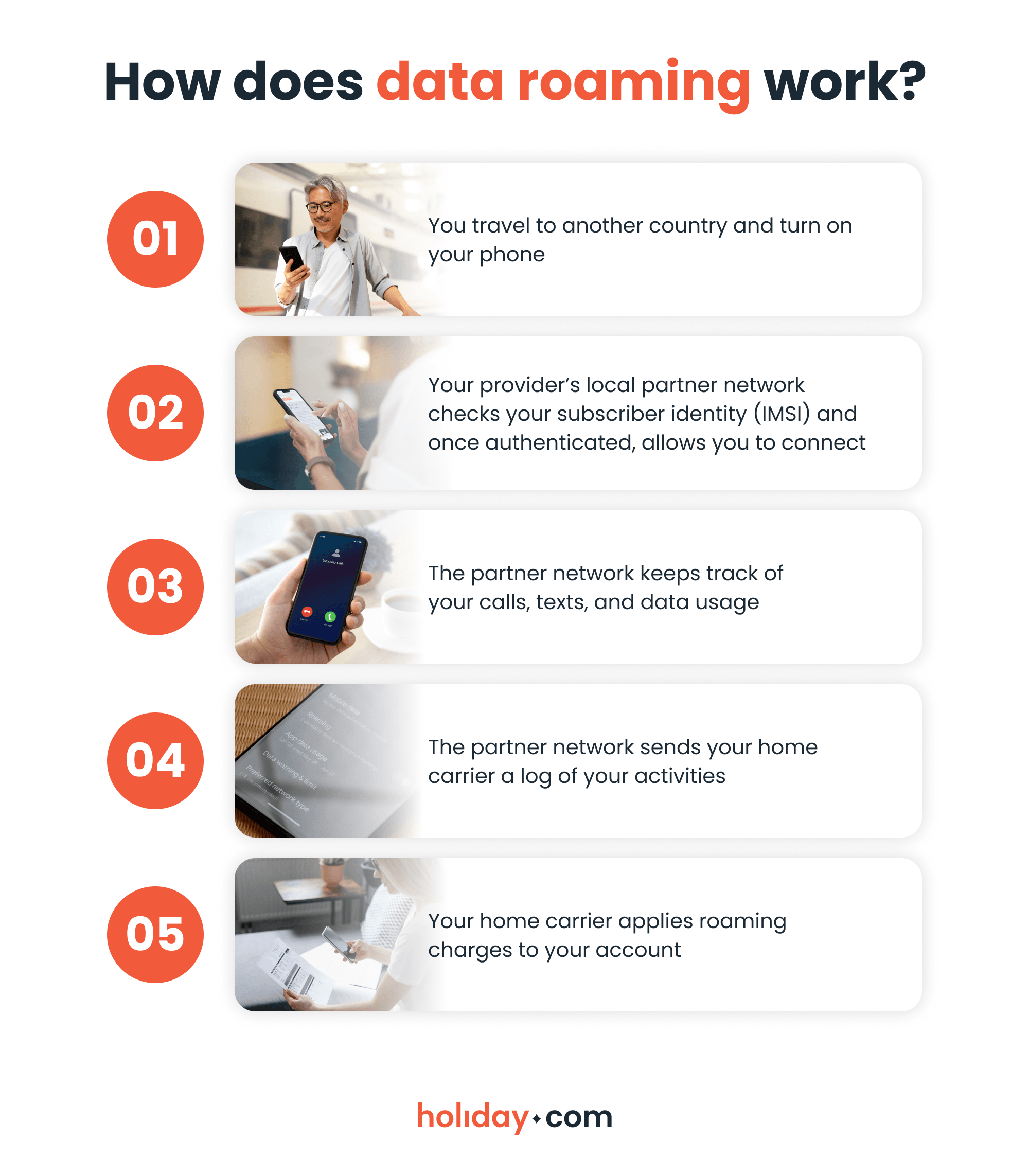
Data roaming works through agreements between mobile carriers in different countries. When you travel outside your carrier’s coverage area, your phone automatically searches for available networks and connects to one that has a roaming agreement with your home carrier.
Once connected, your phone uses the local network’s towers to send and receive data. The local data provider tracks your data usage and sends this information to your home carrier for billing.
Because the billing is through your home carrier, roaming charges appear after the trip, which is why many travelers don’t realize how much data they used until the bill arrives.
The pros and cons of data roaming
Data roaming comes with several benefits and drawbacks that are important to understand before you travel.
| Pros | Cons |
| ✔ Helps establish immediate connectivity
✔ More reliable and secure than public Wi-Fi ✔ Keeps your home number active for calls and OTPs ✔ No new SIM or app required |
✗ Expensive compared to other options
✗ Unpredictable bills due to background app usage ✗ Limited control over data caps and speeds ✗ Poor value for frequent or long-term travel |
How much does data roaming cost?
Data roaming costs vary depending on your carrier, your destination, and your home country. In most cases, pricing falls into two models:
- Daily roaming pass
- Pay-per-megabyte charges
Here’s how roaming looks across regions:
- United States: High daily fees unless you’re on a premium roaming plan. Without a pass, pay-per-megabyte rates can be extremely expensive.
- European Union: Thanks to “roam like at home” regulations, cellular providers treat roaming like domestic usage if you’re using an EU SIM in the EU region.
- Asia-Pacific: Pricing varies significantly by country. Some destinations offer time-limited roaming passes, while others default to pay-per-megabyte billing.
Carriers like Verizon and AT&T charge around $2 per megabyte and $0.25-$1 for messaging on pay-as-you-go rates. Many of these carriers also offer a daily roaming pass for around $10 per day per line.
Other alternatives to data roaming
While eSIMs are the most common alternative to data roaming, there are several other options available. Each option has trade-offs depending on cost, convenience, security, and how long you’re traveling.
If data roaming feels expensive or unpredictable, consider how travel eSIMs, Wi-Fi hotspots, local SIMs, and pocket Wi-Fi compare.
Data roaming vs. eSIMs
Data roaming and eSIMs both let you stay connected while traveling, but they work in very different ways and offer varying levels of control and cost.
With data roaming, plans and rates are set by your home carrier, at times with automatic overage fees if you exceed your data, text, and calling allowances.
In comparison, eSIM plans let you know exactly what you’re paying for upfront, how much data you have, and how long the plan lasts. Some providers, like holiday.com, let you select a plan based on the number of days you’ll need data, rather than charging a per-megabyte fee or locking you into rigid data packages.
Here’s a quick table to show you the main differences:
| Data roaming | Travel eSIM |
| No setup required | Requires a one-time setup |
| Daily passes or pay-as-you-go charges | Fixed-price plans with clear data limits |
| Charges appear after use, sometimes weeks later depending on billing cycle | Pay upfront with no surprise fees |
| Expensive pay-as-you-go fees or possible overage charges | Easily extend your plan and prepay via the app |
| Best for short trips and single-day travel | Perfect for frequent travelers on short or long trips |
Data roaming vs. public Wi-Fi
Public Wi-Fi is a free alternative to data roaming and is widely available in airports, cafés, hotels, and coworking spaces. If you’re spending time in major cities, it can be a convenient way to browse, work, or upload files without using mobile data.
So how does public Wi-Fi actually compare to data roaming? Here are the major differences:
| Data roaming | Public Wi-Fi |
| Works anywhere with mobile coverage | Limited to specific locations |
| Automatic connection | Requires manual connection |
| More secure than open networks | Higher security risks |
| Generally stable | Can become slow or congested |
| Good for activities that require constant access to the internet | Best for light browsing and short sessions |
Data roaming vs. local SIM
A local SIM is a popular alternative for travelers who want cheaper mobile data in the country they’re visiting. It gives you direct access to a domestic carrier, in many cases at much lower rates than roaming.
However, this usually involves purchasing a local SIM after arrival and swapping out your existing SIM. Here’s how local SIMs compare to data roaming in practice:
| Data roaming | Local SIM |
| Usually more expensive | Usually cheaper for data |
| No setup required | Requires SIM purchase and SIM swap |
| Lets you keep your home number active | Disables your home number if your phone doesn’t support two SIM cards |
| Possible overage charges if you exceed your roaming package | Need to buy a new SIM card to top up your plan |
| Best for short trips and emergencies | Ideal for longer stays and heavy data use |
Data roaming vs. pocket Wi-Fi
Pocket Wi-Fi devices are portable routers that provide internet access through a cellular connection. They’re used by travelers who need to connect multiple devices at once, such as laptops, tablets, or phones.
Here’s how they compare against each other for travelers:
| Data roaming | Pocket Wi-Fi |
| No extra devices needed | Requires an extra device |
| Uses your phone battery | Requires separate charging |
| Multi-device support through hotspot | Offers connectivity to multiple devices simultaneously |
| Best for casual travelers | Best for business travelers or digital nomads |
How to turn data roaming on or off
You can control data roaming directly from your phone’s settings, and here’s how to do it on your iPhone or Android devices.
On iPhone
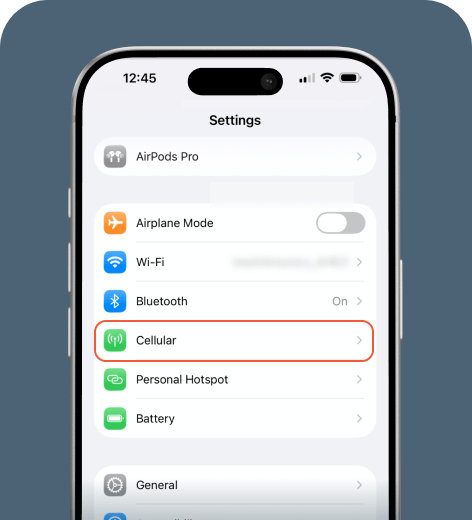
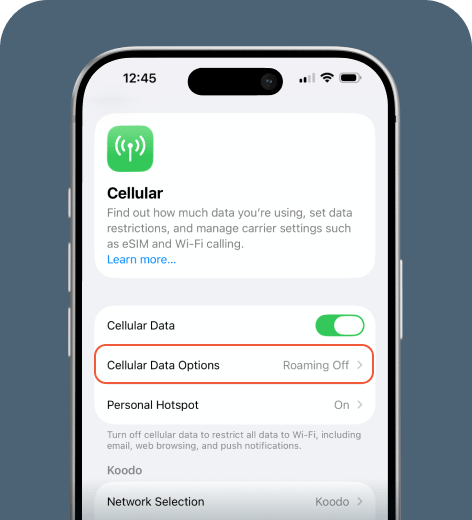
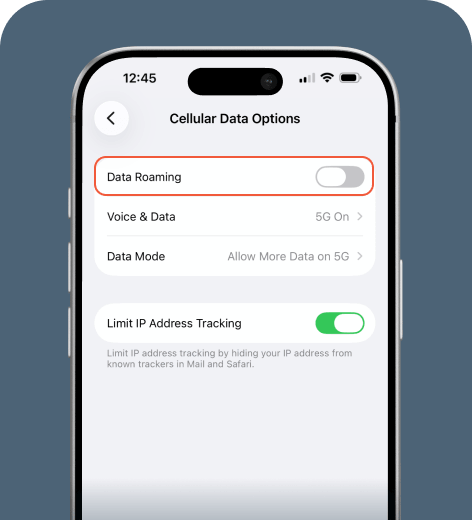
If you’re using an eSIM alongside your main SIM, make sure you’re adjusting the setting for the correct line.
On Android
Samsung
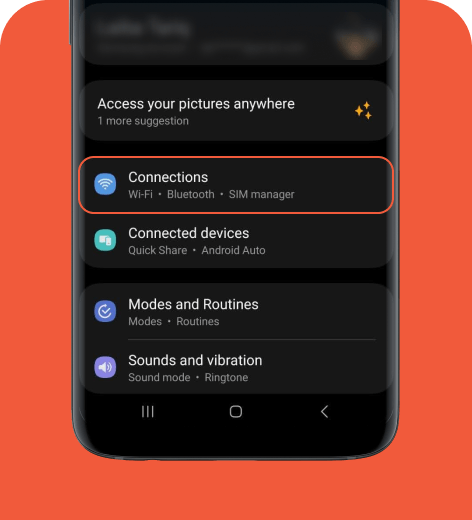
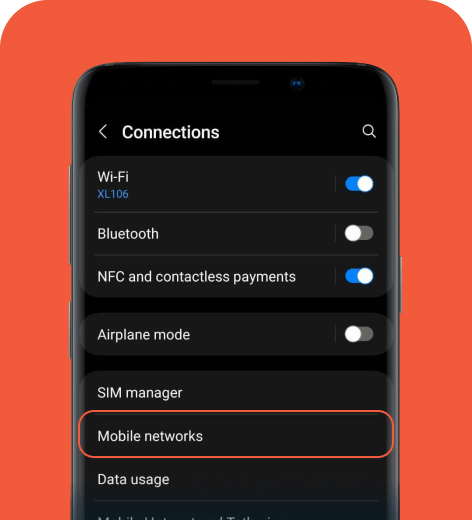
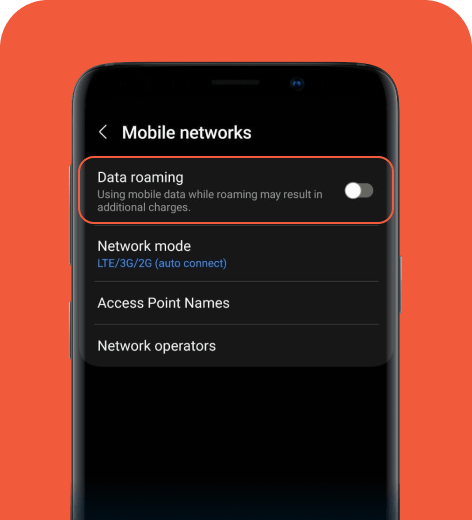
On dual-SIM Samsung phones, you may need to choose the SIM or eSIM you want to manage before changing the roaming setting.
Pixel
- Go to Settings > Network & internet > SIMs.
- Select the line you want to adjust.
- Toggle the Roaming option on or off.
Xiaomi
- Go to Settings > SIM card & mobile networks.
- Tap Data roaming. If you have more than one SIM, you’ll have to select the line you want to adjust first.
- Select your option: Always, For exceptions only, or Never.
How to avoid roaming charges
Roaming charges can add up, but they’re easy to avoid if you control how and when your phone connects to foreign networks before you travel.
Here are the most effective ways to avoid unexpected roaming charges:
- Turn off data roaming on your primary SIM. Disabling data roaming prevents your phone from using foreign networks under your carrier’s roaming rates. You can still turn it on manually if needed.
- Use an eSIM instead of pay-per-megabyte roaming. Travel eSIMs offer clear, upfront pricing. Unlike pay-as-you-go carrier pricing, which charges per megabyte, eSIM providers like holiday.com let you choose a set plan so you know the cost beforehand.
- Use Wi-Fi for data-heavy tasks. Save mobile data by using secure Wi-Fi networks for video calls, downloads, and streaming. This works best when paired with a travel data plan for on-the-go use.
- Limit background data usage. Turn off automatic app updates, cloud syncs, and backups. These processes can use data even when you’re not actively browsing.
- Download essentials before your trip. Offline maps, boarding passes, playlists, and documents reduce the need for mobile data abroad.
- Track your usage. Check your phone’s data usage or your eSIM dashboard to monitor how much data you’re using.
With the right setup, you can skip data roaming and enjoy a connected trip that stays within your travel budget, with costs you understand upfront.
Troubleshooting common data roaming problems
If data roaming isn’t working while you’re abroad, it’s usually due to a settings issue, account restriction, or network configuration problem. Below are the most typical data roaming issues travelers run into and how to fix them.
When navigating your phone settings, note that exact terms used, like Cellular or Mobile Data, may vary depending on your device and location.
Roaming is inactive on your account
Sometimes carriers disable roaming, even if your phone settings are correct. This can happen if roaming isn’t included in your plan or was manually turned off to prevent extra charges.
How to fix it:
- Log in to your carrier’s app or online account.
- Check whether your carrier has enabled international or data roaming for your line.
- If it’s disabled, turn it on or add a roaming package.
- If the option isn’t available, contact carrier support to activate roaming.
Roaming automatically turned off
In some cases, your phone may disable data roaming after a software update, SIM change, or network reset. This often happens when switching countries or using dual SIMs.
How to fix it:
- Open your phone’s Mobile Network or Cellular settings.
- Select the correct SIM or line if you’re using dual SIM.
- Turn Data Roaming on.
- Restart your phone to refresh the network connection.
Fix APN settings
Access Point Name (APN) settings tell your phone how to connect to a carrier’s data network. If these settings are missing or incorrect, roaming data may not work at all. Depending on your network provider, you may not have direct access to adjust your APN settings and will need to contact your carrier.
How to fix it:
- Look up your carrier’s official APN settings on their website.
- Open the APN settings on your phone.
- Compare the listed values with your carrier’s recommended settings.
- Reset the APN to default or manually enter the correct details.
- Restart your phone.
Reset network settings
If roaming still doesn’t work after checking your account and settings, a full network reset may solve the problem by clearing outdated or conflicting configurations.
How to fix it:
- Go to your phone’s Settings menu.
- Select General (iPhone) or System (Android).
- Tap Reset Network Settings.
- Confirm the reset.
- Reconnect to mobile data and re-enable data roaming.
When you reset your network settings, you may need to reconfigure saved Wi-Fi networks, Bluetooth pairings, and some cellular settings.
Consider alternatives to data roaming when traveling
Data roaming can be convenient, but it comes with higher costs and limited control over how you’re charged. Understanding how roaming works, what it costs, and when it makes sense helps you avoid surprises while traveling.
With alternatives like eSIMs, local SIMs, and public Wi-Fi, staying connected no longer has to mean overspending. Now that you know all about data roaming, happy traveling!
FAQ
-
What are the risks of using data roaming?

Data roaming can add costly per-megabyte charges to your phone bill, even if you use it for just a few minutes. Plus, data roaming can have inconsistent coverage and speeds, which can lead to battery drain as your phone works to find and keep a solid connection.
-
Is data roaming free?
No, data roaming is not free when you travel abroad. As your home network partners with international networks, you’re likely to incur high charges.
-
Can I use mobile data while roaming?
Yes, you can use mobile data while roaming. Your phone can connect to partner networks for internet connection as well as calls and SMS outside your home coverage.
-
Should I keep data roaming turned on or off?
Keeping data roaming turned off ensures you won’t accidentally connect to a foreign network when you travel. Unless you have an international data plan, this is the best way to avoid surprise roaming fees. If you’ve purchased an eSIM, a local SIM, or a travel pass from your carrier, then you can leave data roaming on to access data.
-
How can I tell if my device is roaming?
Look for the network provider name at the top of your phone’s home screen. If it displays a network you don’t recognize or is different from your usual provider, then that means you’re roaming and accessing data from another network.
-
Will data roaming activate automatically?
If you have data roaming turned on, your phone will automatically connect to available foreign networks when you travel. If you turn off data roaming in your phone’s settings, then you can control when you connect to data and avoid any unexpected roaming charges.
About our author

You might also be interested in...
-
 Glossary
What is a nano SIM card? Features and compatibility
If you’re buying a new phone or getting a new SIM card for any reason, using the correct size is vital for proper functionality. SIM cards come in multiple sizes like standard and micro, but these c...
 Ivana Shteriova
 06.08.2026
 -
 Glossary
eKYC verification: What is it, when you need it, and how to do it
Seeing “Verification Failed” on your phone screen can be a major disruption to your plans. If you have to complete a facial scan to activate an eSIM or access international funds, an unsuccessful ...
Sarah Kirton
06.04.2026 -
 Glossary
What is a SIM card? How SIM technology works
A subscriber identity module (SIM) card is inside almost every mobile phone, yet most people never think about what it does or what it contains. Simply put, it keeps your device connected to a mobile ...
Jelena Relić
06.04.2026 -
 Glossary
What is GSM? Everything travelers need to know
If you’re a frequent international traveler, you’ve probably encountered GSM before. Whether you knew it, GSM plays an important role in keeping you connected when you travel abroad. But what exac...
Dawn Prevete
06.01.2026 -
 Glossary
What is an APN and how to fix connection errors
There’s nothing more frustrating than seeing full signal bars on your phone while your internet refuses to load. You might be able to make calls or send texts, but your browser, maps, and apps remai...
Jelena Relić
06.01.2026 -
 Glossary
What is mobile internet? A traveler's guide to staying connected
When you check Google Maps in a new city, send WhatsApp messages, or scroll through Instagram Reels on the go, you’re using mobile internet. Mobile internet (also called mobile or cellular data) con...
Sarah Kirton
05.13.2026